iPhone Face ID Not Working After Repair: Causes and Fixes
17 November 2026 · LightspeedTools team
Short answer: When iPhone Face ID stops working after a repair, the cause is almost always a damaged or disconnected TrueDepth part: the dot projector, the flood illuminator and proximity sensor, the infrared camera or one of their flex cables. These parts are paired to the logic board, so swapping them from another phone does not fix it. Check connectors and flexes first, then test each part in order, and only then move on to dot projector repair with a programmer on models that support it.
Why Face ID fails after a screen, back glass or drop repair
Face ID depends on the TrueDepth camera system at the top of the phone. The dot projector throws a pattern of infrared dots onto the face, the flood illuminator lights the face in infrared, the infrared camera reads the result and the proximity sensor tells the phone when something is close. If any one of these fails, Face ID setup fails.
Two facts explain most problems after a repair:
- The parts are paired. The dot projector and the infrared camera are matched to the logic board at the factory. A dot projector or IR camera taken from another iPhone will not work as a straight swap, even if it is a genuine part.
- The parts are fragile. The dot projector is sensitive to heat, impact, liquid and static. A single careless step during a screen or back glass job can kill it.
The most common causes
- Heat on the dot projector. Too much heat from a heat gun, hot plate or separator near the top of the phone is a classic cause, especially during back glass removal or when screen adhesive is softened too aggressively.
- Impact from a drop. The drop that broke the screen may have already cracked or shifted the dot projector. In this case Face ID was likely dead before the repair, which is why testing before you open the phone matters.
- Liquid. Water or corrosion on the TrueDepth module or its connectors.
- Earpiece flex damage. On iPhone X through the 11 series, the flood illuminator and proximity sensor sit on the earpiece flex assembly, which has to move from the old screen to the new one. Tearing, folding or poorly soldering this flex is a very common mistake. On later models the layout changed, so check the exact model before assuming where these parts sit.
- Torn or unseated flex cables. A Face ID flex that is not fully seated, has a bent connector or has a hairline tear will give intermittent or total failure.
- Swapped parts. Someone fitted a TrueDepth module, dot projector or IR camera from another phone. Because of pairing, this does not work.
- Static discharge. Handling the module without ESD protection can damage it with no visible sign.
Reading the error message
The message the phone shows is a useful first clue. It does not give a certain diagnosis, but it narrows the search.
| What the phone shows | What it usually points to | First thing to check |
|---|---|---|
| "Move iPhone a little lower" or "Move iPhone a little higher" during setup, and setup never completes | The dot projector is not projecting a usable pattern, or the IR camera cannot read it | Dot projector and its flex; any recent heat or drop |
| "Face ID is not available. Try setting up Face ID later." | The phone cannot talk to one of the TrueDepth parts, or a part failed its check | Connectors, flex cables, earpiece flex on older models, then dot projector |
| "A problem was detected with the TrueDepth camera. Face ID has been disabled." | A TrueDepth hardware fault | Full TrueDepth inspection |
| Face ID option greyed out or missing | Serious module fault, unpaired part or missing communication | Whether any part was swapped from another phone |
| Face ID works only sometimes | Loose connector, damaged flex or a part failing under heat | Reseat connectors, inspect flexes under a microscope |
Exact wording changes between iOS versions, so treat these as patterns rather than fixed rules.
Diagnosis order: start simple, end with the dot projector
Work from the cheapest, most reversible checks to the most invasive. Many "dead" Face ID phones turn out to have a connector problem.
- Ask about the history. Did Face ID work before the repair? Was the phone dropped or wet? Has another shop opened it? If Face ID was already dead, it is a separate job and the customer should know that before you start.
- Test before you open. Make a habit of testing Face ID, the front camera and the proximity sensor on every incoming phone. Write the result on the job sheet.
- Restart and update. A simple restart and a check that iOS is current rules out software. Do not expect this to fix hardware.
- Reseat every connector. Disconnect the battery first, then reseat the TrueDepth flex, the screen flexes and the earpiece flex. Look for bent pins and debris.
- Inspect flexes under magnification. A repair microscope shows hairline tears, lifted pads and burned spots that you will not see by eye. Pay close attention to the earpiece flex on models where it moves with the screen.
- Test the proximity sensor. Make a call and cover the top of the screen. If the display does not turn off, the proximity sensor or its flex is suspect.
- Test the front camera and portrait selfies. If the normal front camera also fails, the fault may be wider than the dot projector.
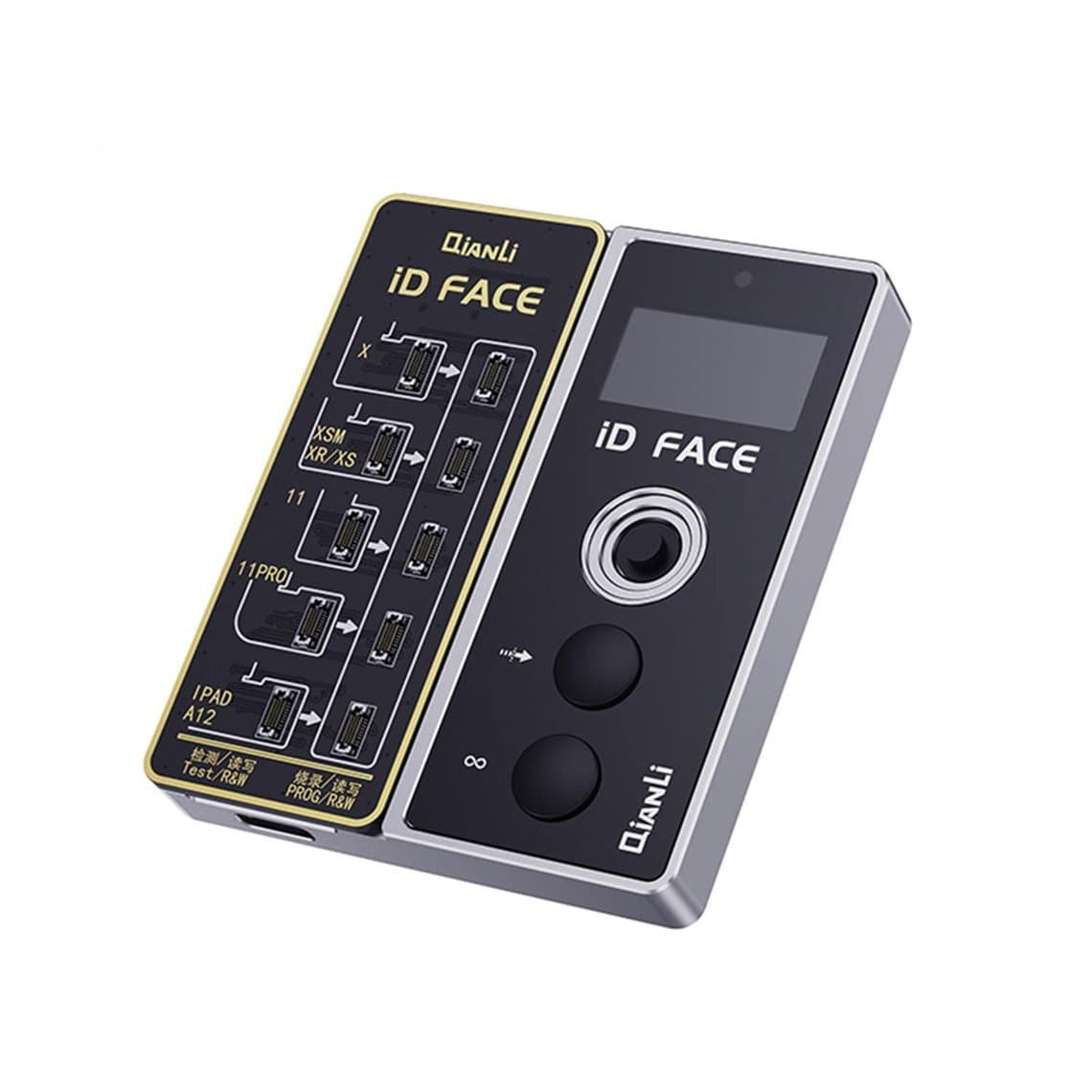
- Test the dot projector. A dedicated tester such as the Qianli ToolPlus Face ID dot projector tester helps confirm whether the projector is at fault on the models it supports (iPhone X to 11 Pro Max).
- Go back to the original parts. If the customer's original screen still has its earpiece flex, refitting it temporarily can show whether the fault moved with the new parts.
Repairing the dot projector with a programmer
When the dot projector is confirmed dead, it cannot simply be replaced with another one, because of pairing. The usual workshop method is to keep the phone's own projector data and move it to a working projector, using a phone repair programmer and a model-specific flex. You can browse the full range of tools for this job on the Face ID dot projector repair page.
How the method differs by generation
Support depends on the model, the tool and its current software, so always check the tool's own compatibility list before you quote. In broad terms:
| Model range (approximate) | Typical approach | Example tools |
|---|---|---|
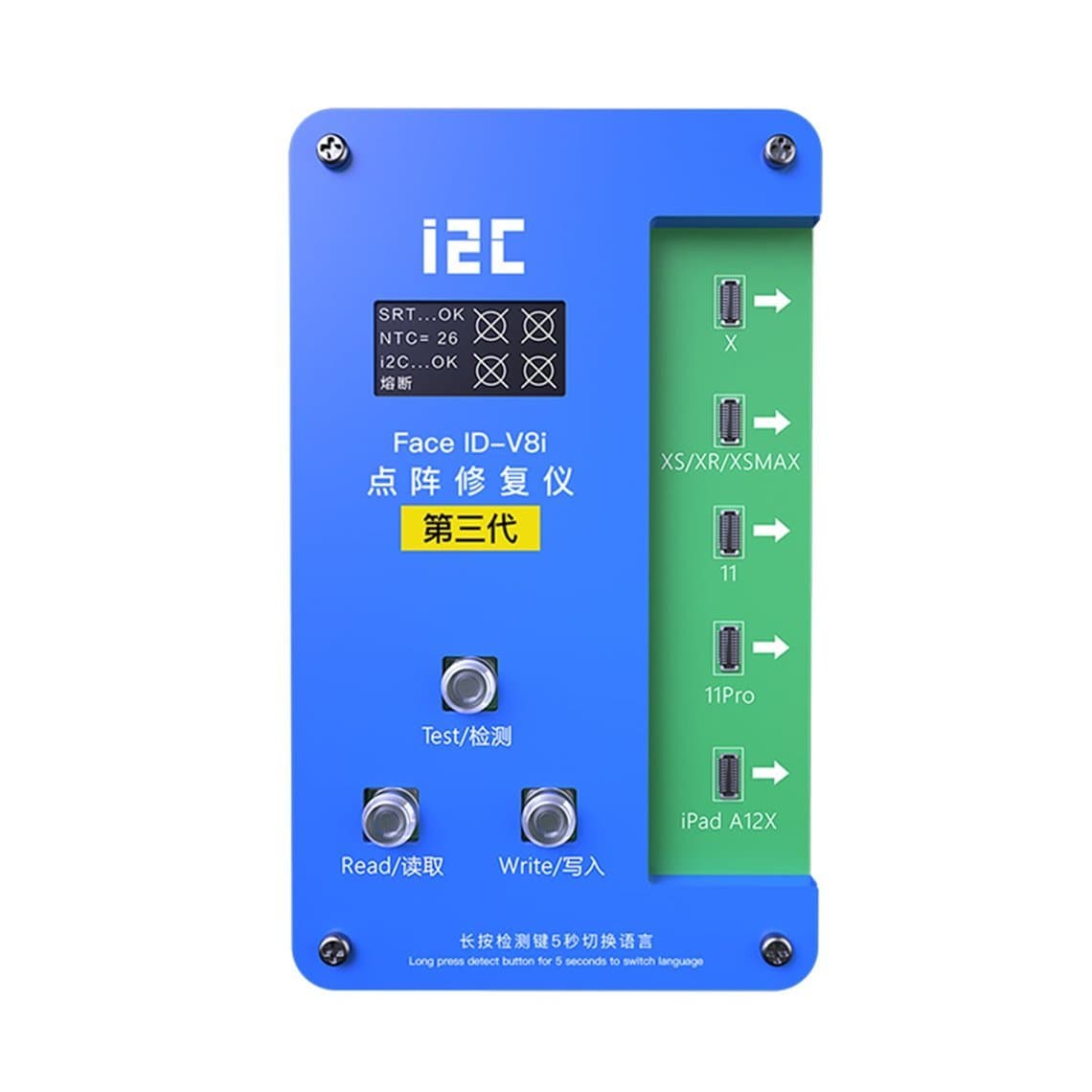
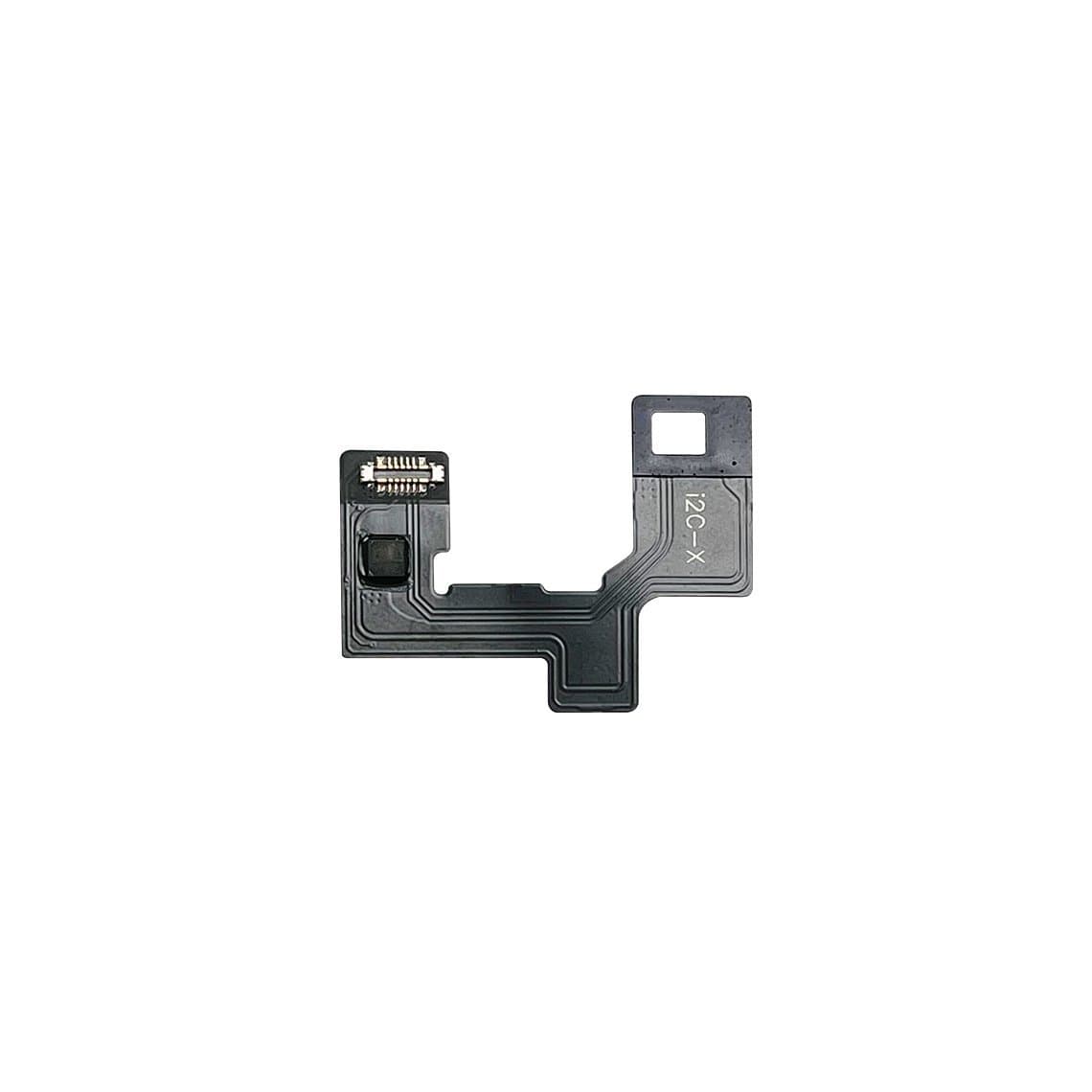
| iPhone X to 11 series | Read the original projector data and write it to a replacement using a programmer and fixture or flex cable | i2C Face ID V8 fixture, external or built-in repair cables |
| iPhone X to 12 or 13 series (varies by flex) | Built-in or non-removal repair flex cables that avoid desoldering the projector chip on supported models | i2C built-in dot matrix repair flex |
| iPhone 13 and later | Tag-on flex soldered to the dot projector, programmed with a supported programmer | JCID tag-on dot matrix flex (13 to 16 Pro Max) |
The newest models may have limited or no support at a given time. Do not promise a Face ID repair on a very recent iPhone until you have confirmed the tool supports it.
General workflow
- Disconnect the battery and remove the TrueDepth module with ESD protection.
- Read and save the original projector data with the programmer. Keep a backup file for that phone.
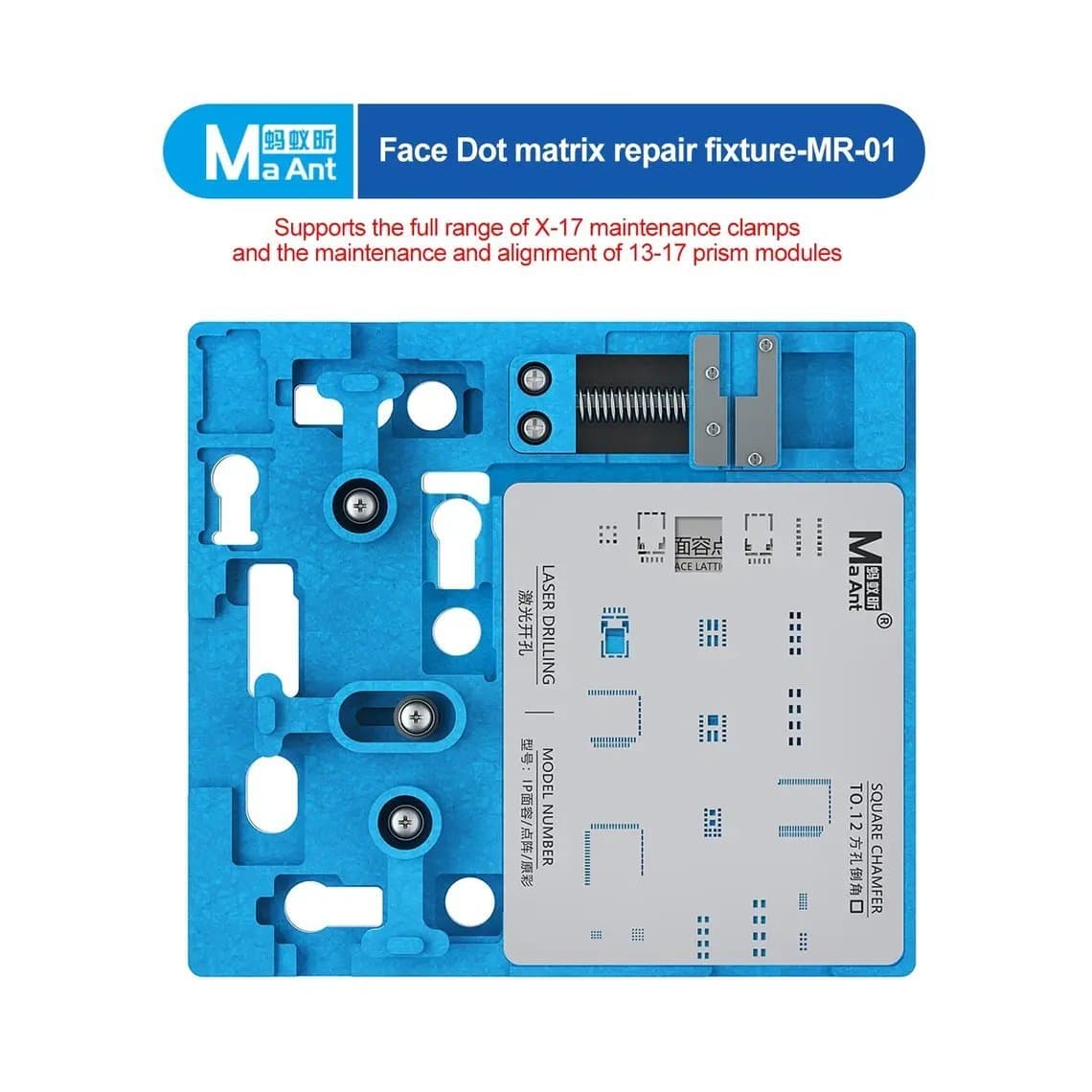
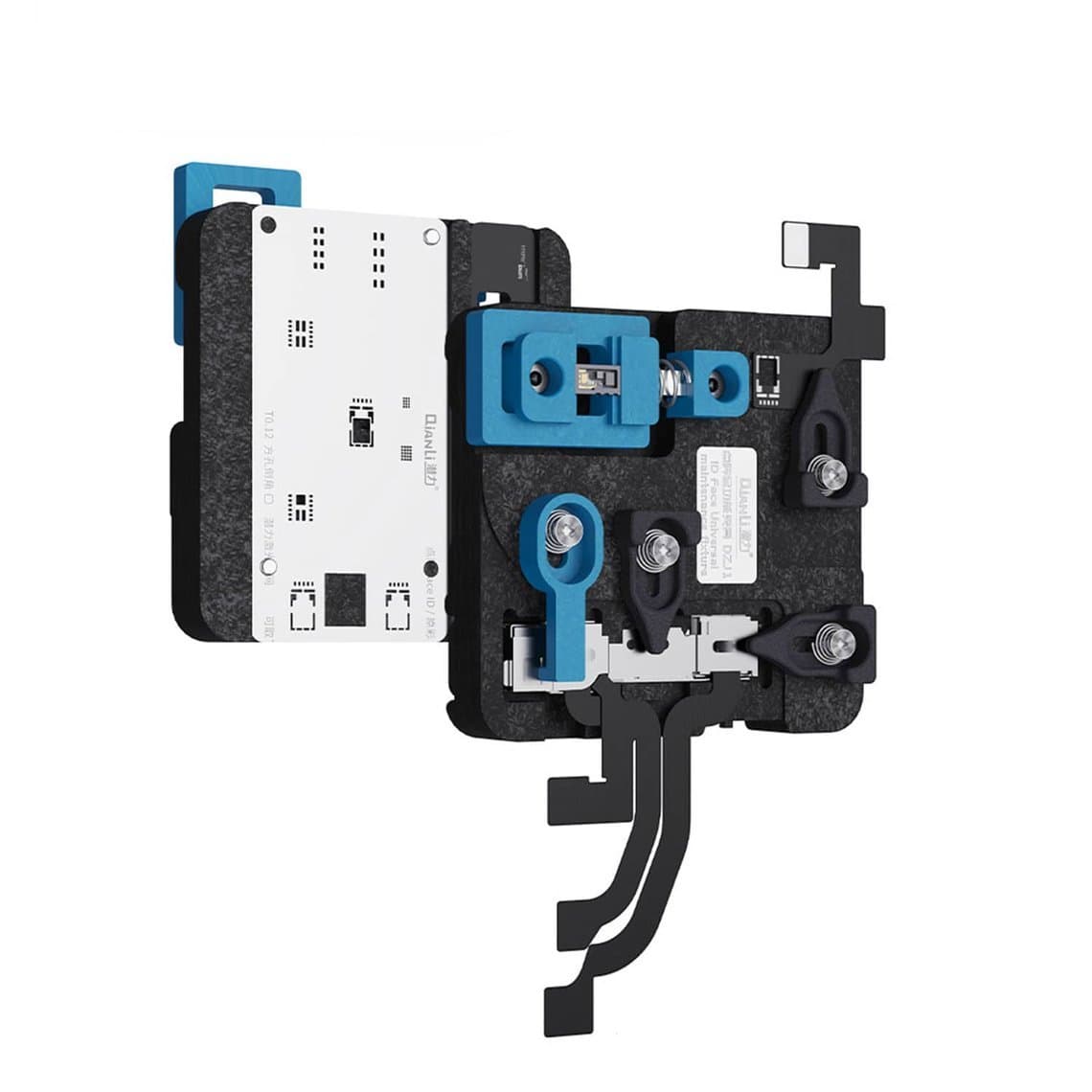
- Prepare the dot projector. On many models this means carefully opening the module, which needs a holder such as the MaAnt MR-01 dot matrix repair fixture or the Qianli ToolPlus dot projector repair fixture to keep the optics aligned.
- Fit the repair flex or tag-on flex for the model. Solder with low, controlled heat and do not let heat travel into the projector lens area.
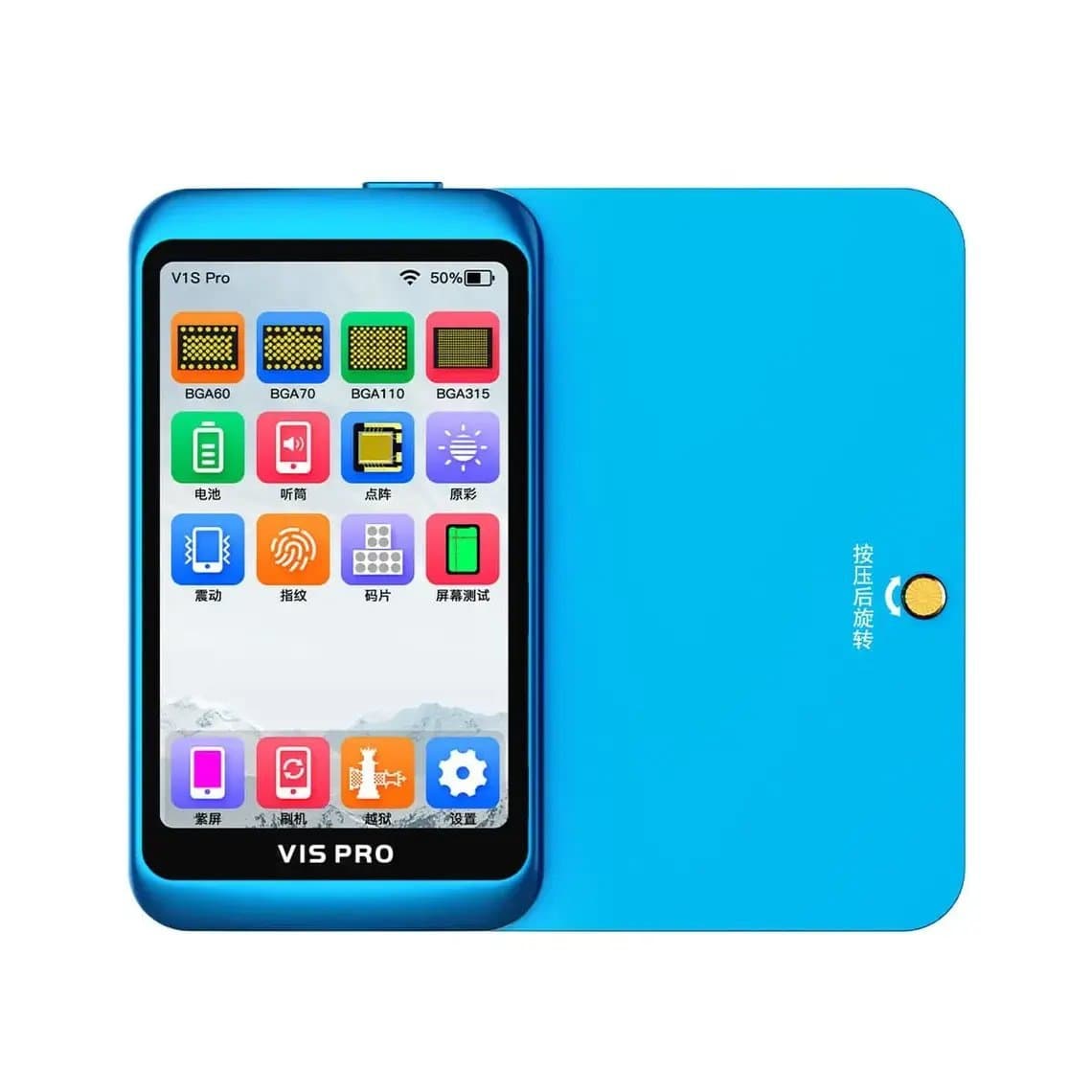
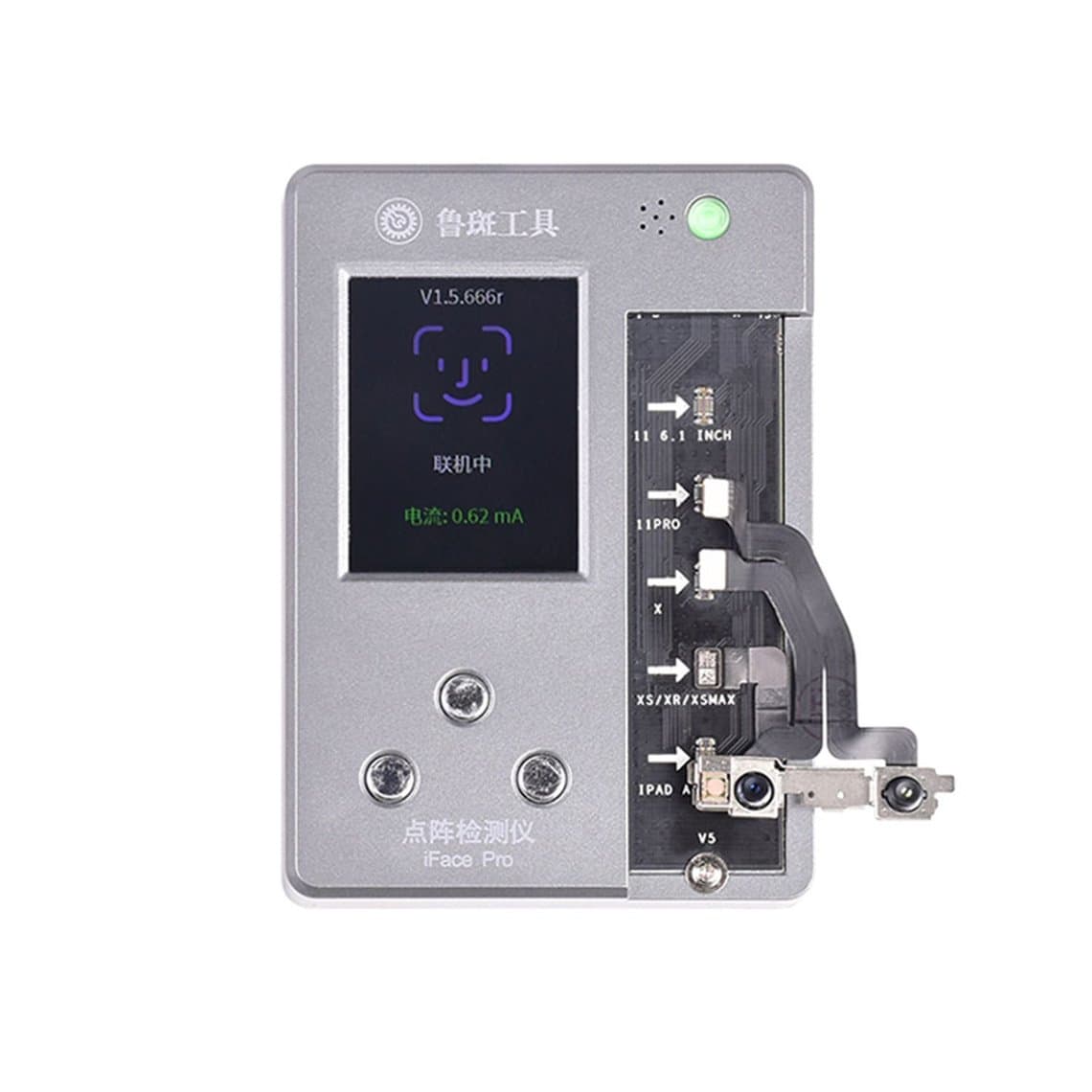
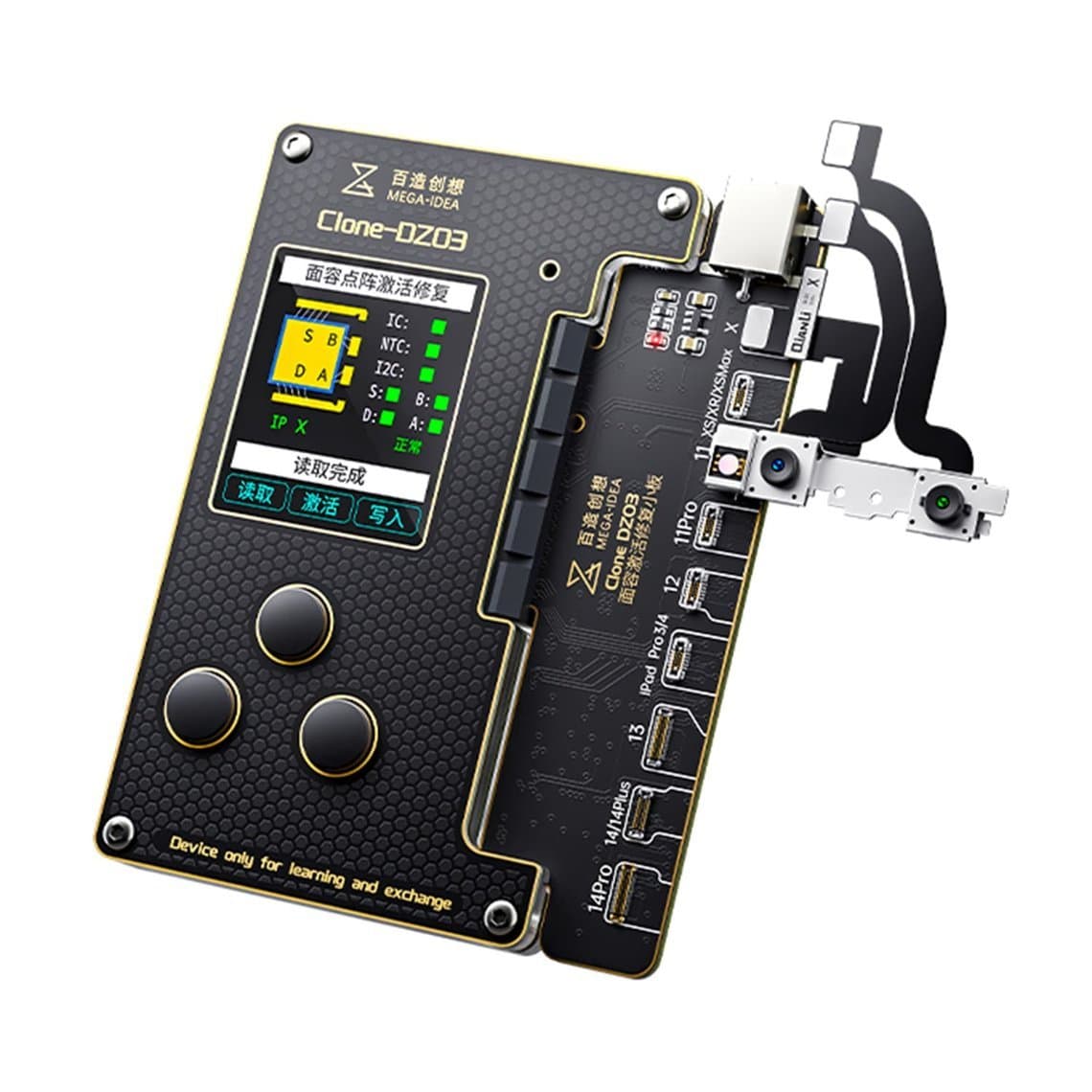
- Write the data with a programmer such as the JCID V1S Pro, the Luban iFace Pro+ or the MEGA-IDEA Clone DZ03, according to the tool's instructions for that model.
- Reassemble with the module seated flat and the flex routed without tension.
- Set up Face ID and test it several times, in normal light and dim light, before returning the phone.
Success depends on the condition of the original module. A projector with a cracked lens, burnt chip or liquid damage may not be recoverable, so quote this as a diagnostic job with a possible no-fix outcome.
Common mistakes to avoid
- Swapping a TrueDepth module or dot projector from a donor phone and expecting it to work.
- Pointing a heat gun or separator heat at the top of the phone for too long.
- Pulling the earpiece flex off the old screen without enough heat or patience, and tearing it.
- Starting the job without testing Face ID first, then being blamed for a fault that was already there.
- Skipping the backup step before writing to a projector.
- Working without an ESD mat and wrist strap.
Prevention tips for every screen and back glass job
- Keep heat away from the top sensor area. Mask it or shield it where possible, and use the lowest effective temperature.
- Never mix Face ID parts between phones. Keep each customer's TrueDepth parts in a labelled tray.
- Move the earpiece flex with care on models that need it, and inspect it under magnification before fitting.
- Choose screens that suit the job. Our iPhone screens come in clear quality grades, and the screen grade itself does not change how Face ID works.
- Disconnect the battery before touching any connector.
- Record Face ID status on the job sheet at intake and at handover.
Questions
Why does Face ID say "move iPhone lower" after a screen replacement?
This message usually means the dot projector is not producing a pattern the infrared camera can read. It often follows heat near the top of the phone, a drop or liquid damage. Check the flex and connectors first, then test the dot projector.
Can I swap the Face ID module from another iPhone?
No. The dot projector and infrared camera are paired to the logic board, so a part from another phone will not work as a straight swap. The usual repair is to keep the original data and move it with a programmer on supported models.
Does replacing the screen break Face ID?
A correct screen replacement should not affect Face ID. Problems come from damage during the job, such as a torn earpiece flex on older models, a poorly seated connector or heat on the dot projector. Test Face ID before and after every screen job.
Can Face ID be fixed on the newest iPhone models?
It depends on the model and on the programmer's current support. iPhone 13 and later usually need a tag-on flex and a supported programmer, and the very newest models may not be supported yet. Check the tool's compatibility list before quoting.
Find the fixtures, flexes and programmers for this job on our Face ID dot projector repair page. Every item is tested before it ships from Shenzhen by DHL, FedEx or UPS. Repair shops can unlock trade pricing through wholesale and reorder fast by SKU or CSV with Quick Order.