iPhone Green Line on Screen: Causes, Diagnosis and the Right Repair
17 November 2026 · LightspeedTools team
Short answer: A green line on an iPhone screen is almost always a fault inside the OLED panel, usually started by a drop, pressure or liquid. Reseating the display connector and testing with a known-good screen tells you in minutes whether the panel, the connector or the board is to blame. In nearly every case the fix is a screen replacement, not a software reset.
What a green line on an iPhone screen actually is
A single vertical green line, sometimes pink or white, is a row or column of pixels stuck on. On OLED iPhones each pixel makes its own light, and the panel is driven through very fine traces along its edges. When one of those traces or driver connections breaks or shorts, a full column lights up and stays lit.
That is why the line is usually perfectly straight, runs edge to edge, and stays in the same place whatever is on screen. It also explains why it often appears days or weeks after a knock: a hairline crack in the panel or its bonding can spread with heat and flexing until it finally opens.
LCD iPhones, such as the iPhone 8, SE (2nd and 3rd generation), XR and 11, can show lines too, but they tend to look different: bands, flicker or blocks of colour rather than one thin green line. This guide focuses on OLED models, where green lines are most common, and notes the LCD differences where they matter.
Which iPhones get green lines
Any iPhone with an OLED screen can develop one. That covers the iPhone X and XS family and the regular and Pro OLED models that followed. The cause is physical in nearly all of them, so the diagnostic steps below apply across the range.
| Screen type | Typical models | How the fault usually looks |
|---|---|---|
| OLED | iPhone X, XS, XS Max and later OLED models | One or more thin vertical lines in green, pink or white; may start after a drop or appear slowly |
| LCD | iPhone 8 / 8 Plus, SE 2nd/3rd gen, XR, 11 | Bands, flicker, dead areas or colour blocks; less often a single thin green line |
For the full list of models we stock parts for, see the iPhone parts hub.
The causes, from most to least likely
1. OLED panel damage from a drop or pressure
This is the most common cause by far. A drop on a corner, a phone sat on in a back pocket, or a bent frame stresses the panel. The cover glass may look perfect while the flexible OLED layer underneath has cracked. Signs that point here: the line appeared after an impact, there is a visible mark or black spot near one end of the line, or pressing gently near the edge changes it.
2. Display flex or connector problems
The screen connects to the board through a flex cable and a board-to-board connector. A connector that has lifted, a bent pin, dirt or corrosion on the contacts, or a creased flex can all produce lines. This is more likely after a previous repair, a battery swap, or any job where the screen was opened and closed again.
3. Liquid
Water or other liquid that reaches the display connector causes corrosion on the contacts and can damage the panel edge. Liquid faults often get worse over time and may come with other symptoms such as touch problems or the screen dimming.
4. Board faults (uncommon)
A damaged display connector on the logic board, or a fault in the display power or data lines, can produce lines. This is rare compared with panel damage, and the known-good screen test below separates it quickly.
5. Software (rare)
A software glitch can occasionally draw a coloured line that disappears after a restart or update. A real hardware line survives a restart, is visible on the Apple logo during boot, and stays when the phone is in recovery mode. If the line shows on the boot logo, stop looking at software.
How to tell panel, connector or board
Work from quick checks to the bench test. Most phones are diagnosed by step four.
- Restart the phone. Watch the Apple logo. If the line is on the boot logo, it is hardware.
- Take a screenshot. If the line does not appear in the saved screenshot when viewed on another device, the fault is in the display path, not in the image iOS is drawing.
- Look for physical clues. Check for a bent frame, a crack at a corner, a black ink spot or a bright patch at one end of the line, and signs of liquid in the SIM tray.
- Open and reseat the display connector. Disconnect the battery first. Inspect the connector and the board socket under magnification for dirt, corrosion or bent pins, clean if needed, then reconnect. A repair microscope makes this inspection far more reliable than the naked eye.
- Test with a known-good screen. Plug in a screen you know works, without fitting it. If the line disappears, the original panel is faulty. If the line or a similar fault appears on the good screen too, the problem is on the board side or the connector.
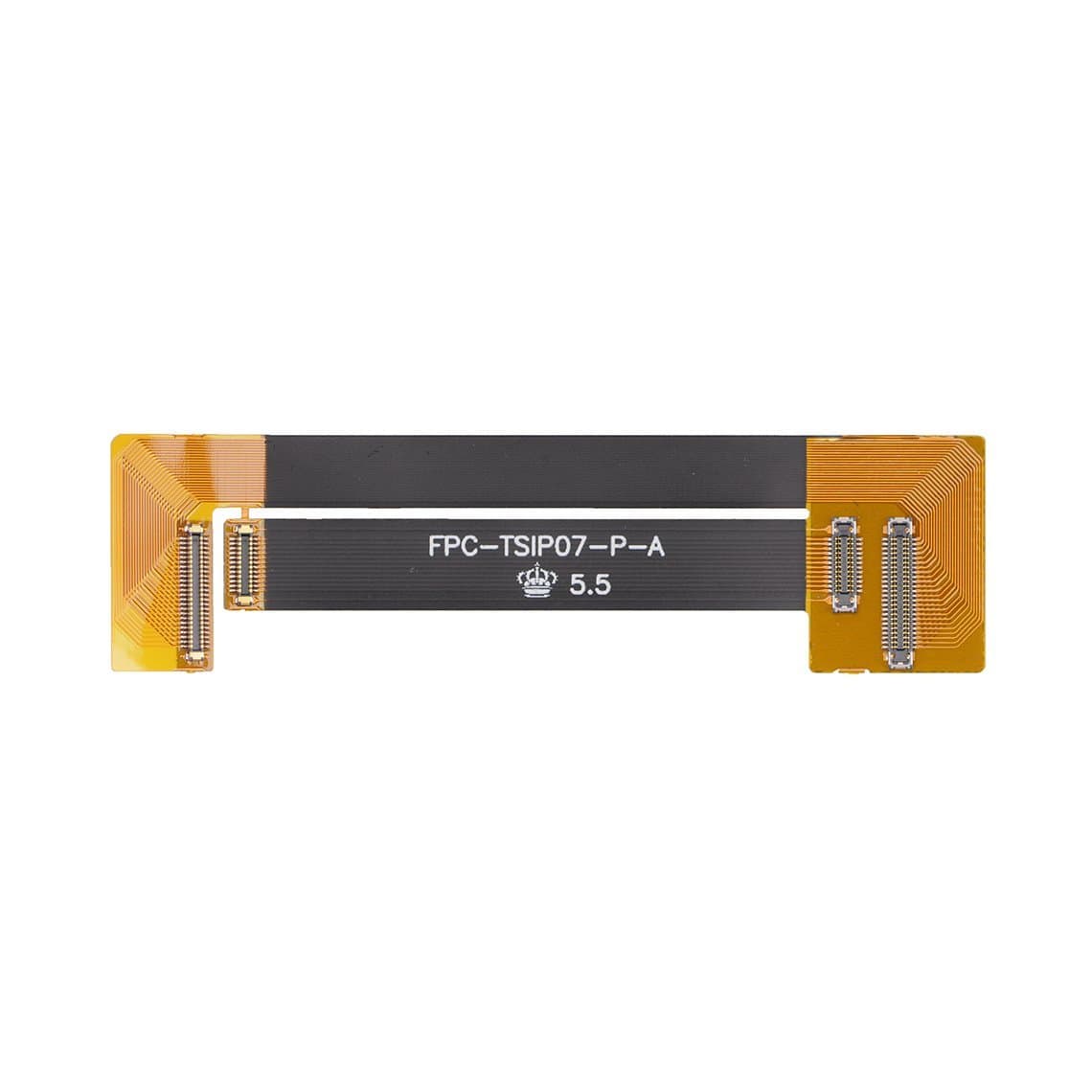
Shops that do this often use a dedicated tester or testing cable so they do not risk the customer's flex. A 3D/LCD screen testing cable for iPhone X/XS lets you connect a panel without fully assembling the phone, and older LCD jobs use cables such as the FPC testing cable for iPhone 7 Plus. For checking incoming stock or a customer's screen off the phone, browse our screen testers.
Why the fix is almost always a screen replacement
On an OLED iPhone, the line comes from inside the panel. The pixels, the traces and the driver connections are sealed between layers and bonded to the glass. There is no adjustment, firmware setting or practical micro-repair that brings a lit column back at shop level.
That means the realistic repair is replacing the display assembly. Only when the known-good screen also shows a fault does the job move to the board: cleaning or replacing the connector, or tracing the display lines under the microscope.
Be honest with the customer about one thing: a green line rarely goes away on its own, and some spread or multiply over time. If they decide to wait, tell them the phone may later develop more lines or lose part of the display.
Which screen grade to fit
The grade you fit decides colour, brightness, battery use and how long the repair lasts. Our grades and warranties are explained in full on the quality grades page; in short:
| Grade | What it is | Warranty |
|---|---|---|
| Original New | New genuine panel | 12 months |
| Original Refurb | Genuine panel with new glass and parts | 12 months |
| Original Pull | Genuine screen taken from another phone | 6 months |
| Premium Soft OLED | Aftermarket flexible OLED, closest to original look | 12 months |
| Hard OLED | Aftermarket rigid OLED, thicker build | 6 months |
| Incell | LCD with built-in touch, budget option | 3 months |
For a customer who noticed a green line on an OLED phone, the screen they had was OLED. Fitting an Incell LCD will remove the line but changes the look: deeper blacks are lost, the bezel can look thicker, and power use is usually higher. For most paying customers, an original grade or a Premium Soft OLED is the safer choice; Hard OLED and Incell suit budget jobs where the customer understands the trade-off.
For LCD models such as the iPhone 8 or SE, fit an LCD assembly, for example the iPhone 8/SE 2nd/3rd LCD screen and digitizer assembly. All grades are listed in iPhone screens.
Fitting the new screen properly
A clean fit prevents a comeback. A few habits help:
- Disconnect the battery before touching the display connector, every time.
- Clean the connector and the board socket, and check both under magnification before pressing the new flex down.
- Transfer or replace shielding and adhesive parts. Small items such as the iPhone XS Max screen conductive foam and the XS Max screen insulator sticker protect the flex from shorts and pressure.
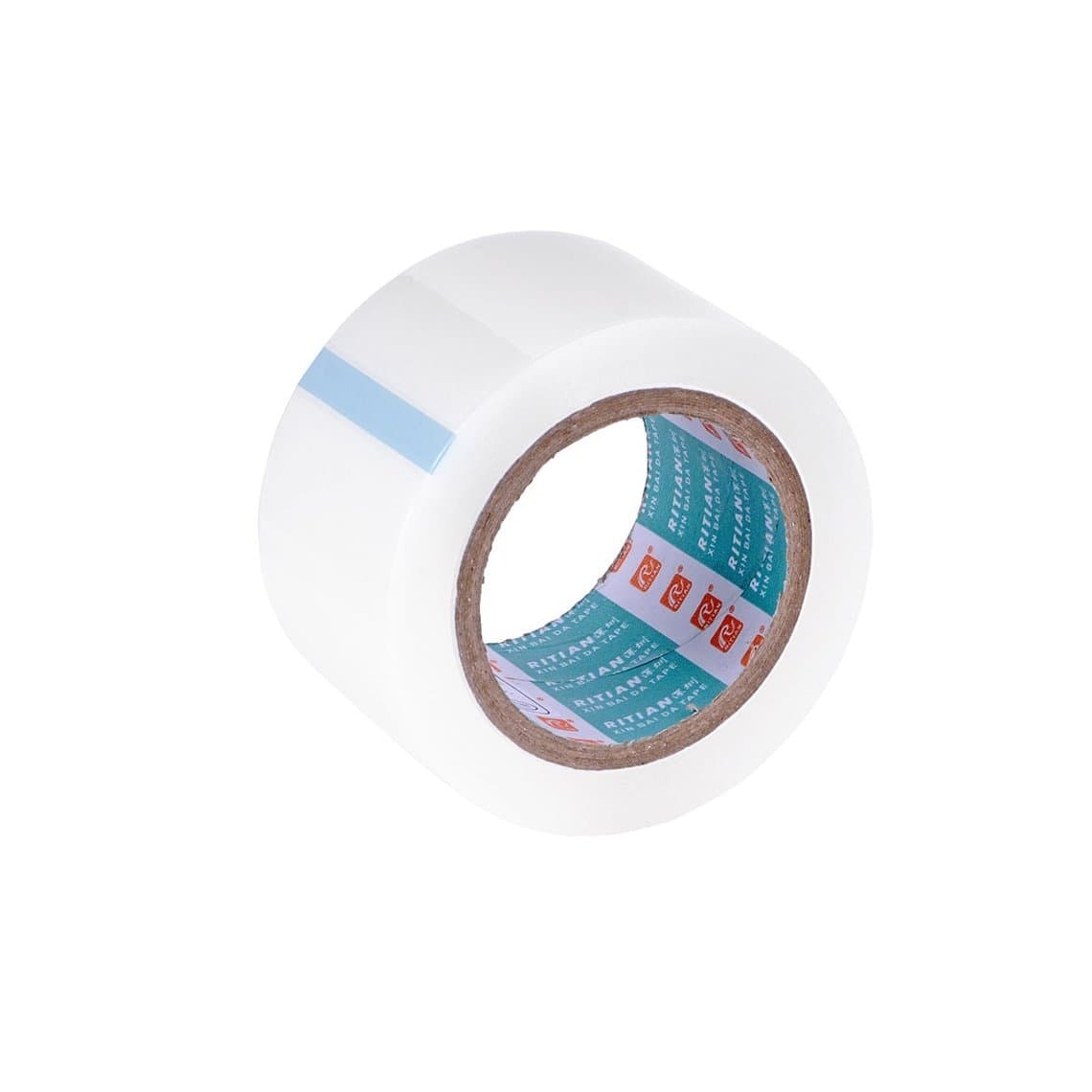
- Keep dust off the panel and the new adhesive with dust remover tape.
- Test the screen fully before sealing: colour, brightness, touch across the whole surface, Face ID and the earpiece.
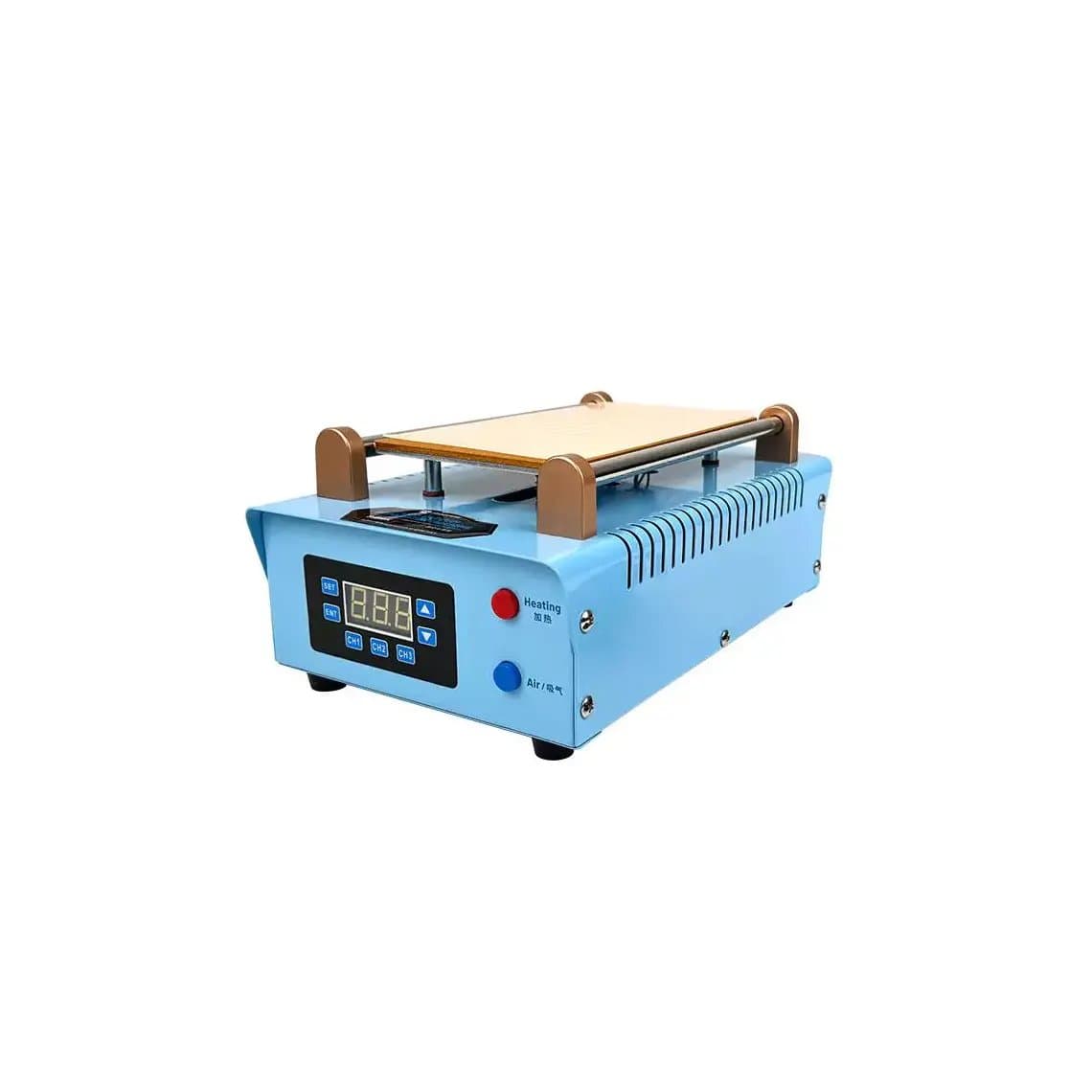
Shops that refurbish their own panels, separating cracked glass from working OLEDs, need separation and lamination equipment, such as the Sunshine S-918K screen separator. Note that a panel with a green line is not a refurb candidate: the fault is in the OLED itself, not the glass.
True Tone and the "unknown part" message after replacement
Two things surprise customers after a screen swap, so explain them before the repair.
True Tone. Each original screen carries its own calibration data. When you fit a different screen, True Tone usually disappears from Control Centre and Settings. On supported models, you can read the data from the original screen and write it to the new one with a programmer, as long as the original screen's chip still responds. See our True Tone screen programmers. Do this before the old screen goes in the bin.
"Unknown part" notice. Recent iPhones show an "Unknown part" or similar notice in Settings after a non-Apple screen is fitted. The phone still works, but the message stays in the parts and service history. Tell the customer this in advance so it is not mistaken for a faulty repair. Apple's rules on genuine part calibration change between iOS versions, so check Apple's support site for the current position on your model.
Questions
Can a green line on an iPhone screen fix itself?
Very rarely. If it disappears after a restart, it was a software glitch. A line that shows on the Apple boot logo is a hardware fault and usually stays or gets worse over time.
Does Apple replace screens with green lines for free?
That depends on the model, warranty status and any programme running at the time. Check Apple's support site for any current programme for your model. Outside warranty or a programme, a screen with drop or liquid damage is a paid repair.
Will a new screen fix a green line every time?
It fixes it whenever the fault is in the panel, which is the usual case. Testing with a known-good screen before ordering confirms this. If the good screen shows a fault too, the problem is the connector or the board.
Can I keep using a phone with a green line?
Usually yes; the line is cosmetic at first. But it can spread, more lines can appear, and an underlying crack can let the screen fail completely. Back up the phone and plan the repair.
Ready to stock up? Browse all grades in iPhone screens, open a wholesale account for trade pricing, or use quick order to add screens by model in one go.