iPad Not Charging: Port, Battery or Board?
17 November 2026 · LightspeedTools team
Short answer: When an iPad is not charging, rule out the cheap causes first: a weak adapter or bad cable, lint in the Lightning or USB-C port, a low-power USB port showing "Not Charging", or a software hang. If those check out, a USB tester tells you whether current flows, which points to the charging port flex, a worn or deeply discharged battery, or the charging circuit on the logic board.
iPad charging faults reach the bench all the time, and they are easy to misdiagnose. A tablet battery is large, so an iPad can look dead for a long time after it has actually started charging, and a small phone adapter may not keep up with it at all. This guide gives a test order that separates outside causes from the port, the battery and the board before you open anything.
Step 1: Check the adapter and cable
iPads draw far more power than phones. A 5W phone adapter may charge one very slowly, or not at all while the screen is on. As a rough guide, Lightning iPads shipped with 10W or 12W adapters, and USB-C iPads with 18W or 20W USB-C Power Delivery adapters; check the model's own spec if in doubt.
- Test with a known-good adapter of the right wattage, not the customer's.
- Swap in a known-good cable. Frayed or damaged cables, and some uncertified ones, cause intermittent or no charging.
- Try a wall outlet, not a laptop port, power strip or car charger.
Step 2: Read the on-screen message
The status bar tells you more than customers think:
| What you see | What it usually means |
|---|---|
| "Not Charging" next to the battery icon | The power source is too weak, typically a computer or low-power USB port. The iPad sees power but cannot charge from it. |
| Lightning bolt shows, but percentage falls in use | Adapter too weak for the load, or the iPad is charging slowly because of heat. |
| Charging icon flickers on and off | Loose connection: lint, worn port contacts, damaged cable, or a failing port flex. |
| "Accessory not supported" | Cable or adapter problem, or a fault in the port or the port-identification circuit. |
| Nothing at all, screen black | Deeply discharged battery, software hang, or a hardware fault. Keep testing. |
Step 3: Clean the port
Lint packed into the port is one of the most common causes of "not charging", especially on iPads that live in bags. The cable seats almost all the way, but not far enough to make full contact.
- Power off and look in with a bright light, ideally under magnification.
- Loosen debris with a thin wooden or plastic pick. Never use metal; it can short pins or scratch contacts.
- Use a little isopropyl alcohol on a fine brush for grime or residue, then let it dry fully.
- On USB-C ports, take care around the centre tongue. It is thin and breaks if you lever against it.
A properly seated cable should click in and feel firm. If it still wobbles in a clean port, the receptacle may be worn.
Step 4: Rule out software
- Force restart the iPad. A hung system can look exactly like a dead battery.
- Update iPadOS if the iPad boots. Charging-related bugs do appear in some releases.
- Check charging settings. On some recent models iPadOS offers an option to limit charging to 80%, and optimized charging can pause near 80% for a while. Customers often report these as "won't charge past 80%".
- Let it cool. iPadOS can slow or pause charging when the battery is hot, for example after heavy gaming or in a hot car.
Step 5: Leave it on a good charger
A fully drained iPad can take a while before it shows anything. Plug it into a known-good adapter and leave it for up to an hour before deciding it is dead. A low-battery image with a cable icon is a good sign: the battery is taking charge. If it never appears, move on to measurement.
Step 6: Measure with a USB tester
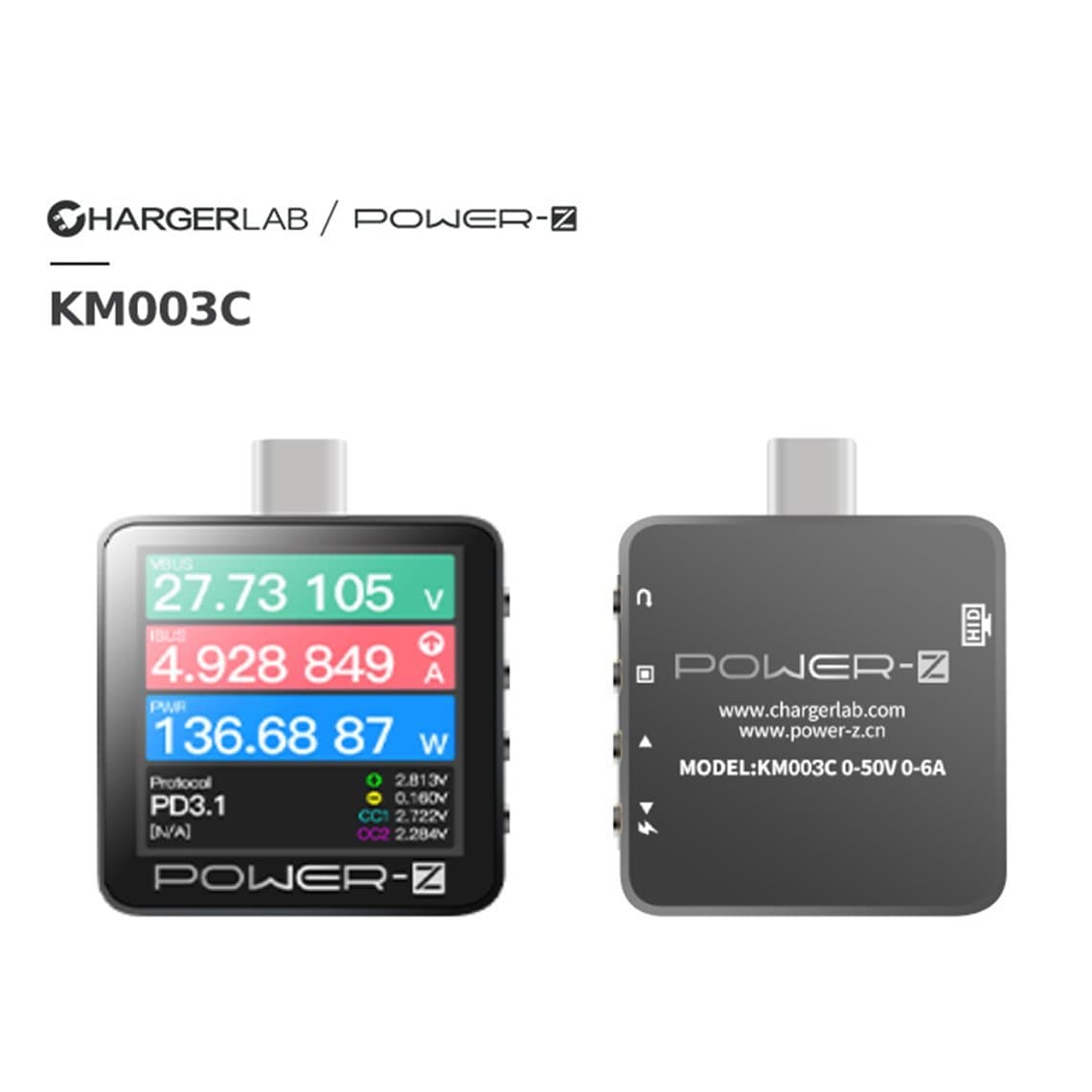
A USB tester between the adapter and the cable is the quickest way to see what the iPad is actually drawing, and it turns guesswork into evidence. A Type-C tester such as the ChargerLAB POWER-Z KM003C also shows the Power Delivery voltage negotiated on USB-C models. More options are under USB testers, and how to read the numbers is covered in reading USB tester results for phone repair.
| Reading | Likely cause |
|---|---|
| 0 A, no change when plugged in | Open circuit: port or flex fault, broken board-side connector, or the charging circuit is not responding. |
| Small current that stays very low and never climbs | Deeply discharged battery in pre-charge, a failing battery, or a fault limiting charge. |
| Normal current at first, then drops or cycles on and off | Intermittent port contact, overheating, or a battery or board fault. |
| Normal, steady current but the percentage never rises | Worn battery, or a gauge or board fault reading the battery wrongly. |
| Very high current with the device dead | Possible short on the board. Stop and diagnose before leaving it connected. |
Exact current figures vary with the model, adapter, battery state and screen activity, so compare against a known-good iPad of the same model where you can.
The hardware suspects
Charging port flex
On most iPads the Lightning or USB-C port sits on a flex cable that plugs into the logic board, so a worn or damaged port is a part swap rather than board work. Typical examples are the iPad Air dock connector flex, the iPad mini 2/3 charging flex, the iPad mini 4/5 charging flex, the iPad Pro 9.7" charging flex and the iPad Pro 12.9" charging flex (Wi-Fi version). Check Wi-Fi versus cellular on Pro models; some list separate flexes for each, and colour matters because the port surround shows through the housing.
Point to the flex when: the cable seats loosely in a clean port, the contacts are burnt or corroded, charging depends on cable angle, or a USB tester shows nothing even with a known-good cable.
Board-side connectors
The flex and the battery plug into small FPC sockets soldered onto the logic board. If one of these is cracked, bent or lifted, a new flex will not help. These sockets are sold as "connector port onboard" parts, for example the iPad mini 1/2 battery connector port. Replacing one is micro-soldering work and needs a microscope and hot air. On some models the charging receptacle layout is different from the usual flex design, so confirm with the model's teardown or boardview before ordering.
Battery
A worn battery charges slowly, drops sharply, or shuts down at mid percentages. A deeply discharged battery can sit in a low-current pre-charge for a long time and may not recover at all if it has been flat for months. Battery replacement on an iPad means removing the screen and working through strong adhesive, so it should be the conclusion of testing, not a guess. The process is covered in iPad battery replacement: adhesive and safety.
Logic board charging circuit
When the port, flex and battery are all good, the fault is on the board. On Lightning iPads, a port-identification chip, often called Tristar by repair techs, decides what is plugged in and enables charging; parts like the iPad Air 1610A3 charging IC and iPad mini 2 1610A charging IC are common replacements. A separate charger IC and power-management circuit handle the charging itself, with filters and protection parts on the input line. USB-C iPads use different controllers, and the split varies by generation, so confirm with the schematic or boardview. Typical signs of a board fault are "Accessory not supported" with known-good parts, no current at all, or fake charging where the icon shows but the battery level never rises.
The repair route
- Confirm the fault with the tests above before opening anything.
- Plan for screen removal. On most iPads the port flex and battery are reached from the front, so the screen has to come off first. That is the riskiest part of the job; see iPad screen replacement: digitizer, LCD or laminated for how each screen type opens.
- Disconnect the battery before touching the port flex or any board connector.
- Fit the new flex, reconnect, and test charging with the USB tester before closing.
- If a known-good flex does not change the reading, move to board diagnosis rather than trying another flex.
The right openers, picks and heat tools are grouped under iPad repair tools.
Common mistakes
- Testing with a phone adapter and condemning a good iPad.
- Calling an iPad dead after five minutes on the charger.
- Cleaning the port with a metal pin or SIM tool.
- Opening the screen to fit a flex when the fault was lint.
- Fitting flex after flex on a board with a failed charging IC.
- Replacing a battery on a hunch without a current reading.
Questions
Why does my iPad say "Not Charging" when plugged into a computer?
Most computer USB ports do not supply enough power to charge an iPad. It sees the connection and may slow the drain, but it cannot charge. Use a wall adapter of the right wattage instead.
How long should I leave a dead iPad on the charger?
Give it up to an hour on a known-good wall adapter before deciding it will not charge. A deeply drained battery can take a while to show the low-battery screen. If nothing appears, check the current draw with a USB tester.
Can a charging port be cleaned instead of replaced?
Often, yes. Lint and debris are a very common cause, and careful cleaning with a non-metal pick fixes many iPads. Replace the port flex only when the contacts are damaged, the receptacle is worn, or the iPad still will not charge once clean.
Is an iPad charging port repair hard?
The part is usually a flex cable, but on most iPads it sits behind the screen, which has to be removed with heat and care. Screen removal, not the flex itself, is where most of the risk and time is. Board-side faults are a step harder and need micro-soldering.
For charging flexes, batteries and board-level parts, browse iPad parts. Shops buying regularly can apply for wholesale pricing, which unlocks after $500 of purchases, and reorder by SKU or CSV through Quick Order. Parts are tested before they ship from Shenzhen.