iPhone Charging Port Repair: Flex Replacement or Board Repair?
17 November 2026 · LightspeedTools team
Short answer: Most iPhone charging port repairs are fixed by cleaning the port or replacing the charging flex cable, which needs no soldering on most models. If a known-good flex does not fix it, or a USB tester shows abnormal current draw, the fault is on the logic board, usually the charging IC or its surrounding parts, and that needs a soldering station, hot air and a microscope.
The hard part of charging port repair is not the swap. It is deciding, before you open the phone, whether this is a flex job or a board job, so you quote the right price and order the right part. This guide gives you a diagnosis order, a decision table and the model differences from Lightning to USB-C.
Lightning vs USB-C: what changed between generations
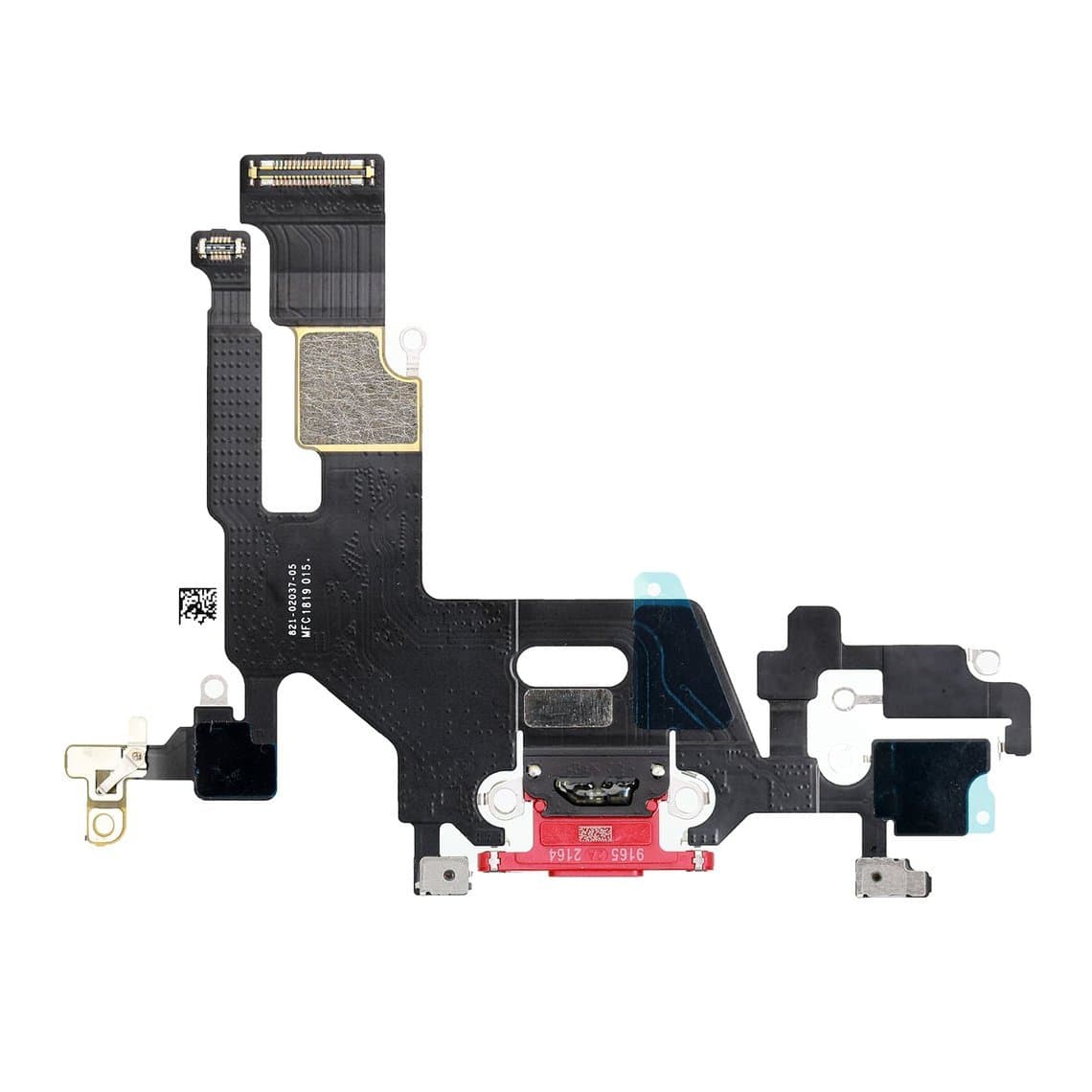
The iPhone 5 through the iPhone 14 series use a Lightning port. The iPhone 15 series and later use USB-C. In both cases, the port sits on a flex cable at the bottom of the phone that also carries other parts, so a bad port flex can cause more than charging faults.
| Generation | Port | What the bottom flex usually carries | Repair notes |
|---|---|---|---|
| iPhone 6 to 8 / SE 2nd gen | Lightning | Port, bottom microphone, headphone jack on models that have one, antenna contacts | Flex swap is routine; the battery often has to come out first |
| iPhone X to 14 series | Lightning | Port, microphones, and links to other bottom components depending on model | Some models need the Taptic Engine and speaker removed; small brackets and plastics need to go back in place |
| iPhone 15 series and later | USB-C | USB-C port and related parts, layout varies by model | Some models open from the back glass, which changes the disassembly order |
Because the flex carries microphones too, test calls, voice memos and speaker audio after any port replacement, not only charging. Parts and layouts change by model, so check the exact model before ordering. Browse the right parts under iPhone parts by model.
Step 1: diagnose before you open the phone
Many "broken port" phones just have a port full of lint. Work through this order before quoting a repair.
- Look inside the port with a light and magnification. Pocket lint packs into the back of the port and stops the plug from seating.
- Clean it safely. Power the phone off. Use a non-conductive pick, such as wood or plastic, and scrape gently along the back wall. Do not use metal pins; they short pins and scratch contacts. Compressed air helps after the lint is loosened.
- Try a known-good cable and charger. Many reported port faults are bad cables.
- Measure with a USB tester. Put a USB tester between the charger and the phone. Normal charging shows current that rises and settles. Zero current, very low current that never rises, or a jump to high current with no charging all point to different faults (see the table below).
- Check for liquid. Look for corrosion on the pins. On USB-C models, a liquid-detected alert on screen is a sign to dry the phone before going further.
- Wiggle test. If charging cuts in and out when the plug moves, the port contacts or the flex are worn.
- Check accessory messages. "Accessory not supported" with a known-good genuine cable points to the port flex or the charging circuit on the board.
Step 2: flex replacement or board repair?
Use the symptoms and the USB tester reading to decide what to quote.
| Symptom | Most likely cause | Repair |
|---|---|---|
| Charges only at a certain angle, loose plug | Worn port contacts or damaged flex | Flex replacement |
| No charging, no data, clean port, normal battery | Damaged flex or connector | Try a new flex first, then board diagnosis |
| Bottom microphone dead along with charging faults | Port flex (it carries the mic) | Flex replacement |
| Fake charging: icon shows but percentage does not rise | Often the board charging circuit; sometimes the battery | Test with a known-good battery and flex, then board work |
| High or no current with a new flex fitted | Short on the charging line, failed charging IC | Board repair |
| Charges but no data to a computer | Data lines on the flex or the USB/Lightning control IC | Flex first, then board |
| Wireless charging dead, cable charging fine | Wireless/NFC charging flex or its connector | Wireless coil assembly replacement |
The simple rule: always test with a known-good flex before you quote a board repair. Many shops keep one tested flex per popular model on the bench as a test part. It saves hours of board work on phones that only needed a part swap.
How to replace the charging port flex
Exact steps vary by model, but the order is the same across generations.
- Power off and open the phone with gentle heat and a suction cup, or from the back glass on models built that way.
- Disconnect the battery first, before any other connector.
- Remove what covers the flex: loudspeaker, Taptic Engine and brackets, depending on the model. Keep screws in order; length matters.
- Note small parts. Retaining plastics, foam pads and gaskets go back in place. On the iPhone X, for example, the charging port microphone retaining plastic holds the mic area in position, and the wireless charging flex foam cushions the coil flex. Lost or torn pieces cause rattles and weak mic audio.
- Release the flex. Many port flexes are glued along the bottom of the frame. Warm the area and lift slowly with a plastic tool to avoid tearing the new or the old flex.
- Fit the new flex, matching the exact model, for example the iPhone 11 USB charging flex, the iPhone SE 2nd gen charging flex or the iPhone 12/12 Pro charging flex. Flex colours usually match the phone colour so the port looks right from outside.
- Test before closing: charging current with a USB tester, data to a computer, microphone in a call and a voice memo, speaker audio and headphone accessories where relevant.
- Reassemble and seal with new display or back adhesive.
Note on model families: the iPhone 12 and 12 Pro share some parts, but the iPhone 12 Mini charging flex and the 12 Pro Max flex are different. Always order by exact model.
Wireless charging faults are a separate repair
If cable charging works and MagSafe or Qi charging does not, the fault is usually in the wireless charging coil assembly on the back of the phone, not the port. On iPhone 12 and later, this assembly also carries NFC, so a damaged coil can stop Apple Pay as well. Replace it with the matching part, such as the iPhone 12 wireless NFC charging flex assembly. Back glass damage often goes hand in hand with a damaged coil, so inspect both.
When it is a board repair
If a known-good flex and a known-good battery do not fix charging, move to the board. Common board-level causes include a failed charging IC, a failed USB or Lightning control IC (often called Tristar or Hydra on Lightning models), shorted capacitors on the charging line, and corrosion from liquid. Some connectors on the board can also be damaged by careless removal.
Board work needs proper equipment:
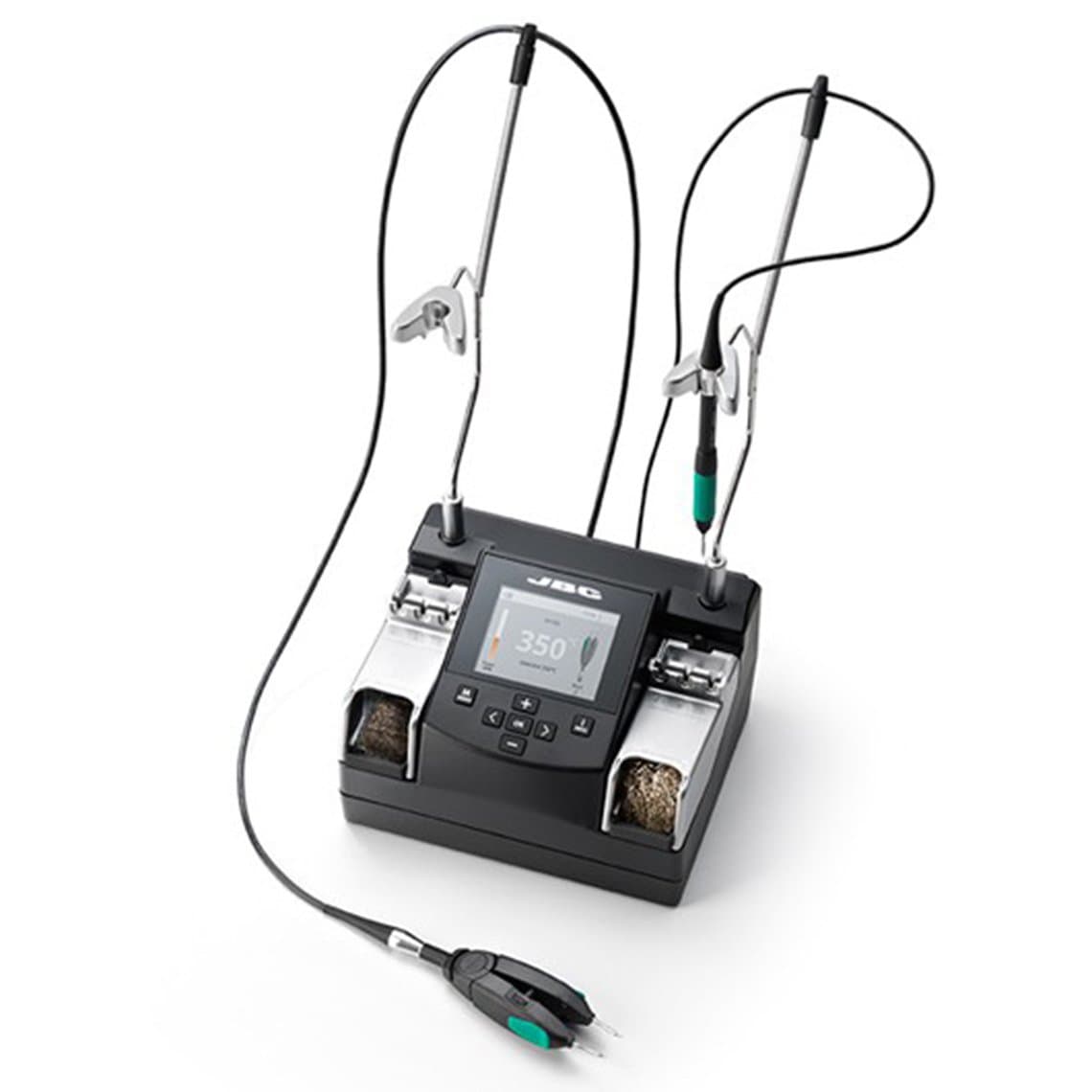
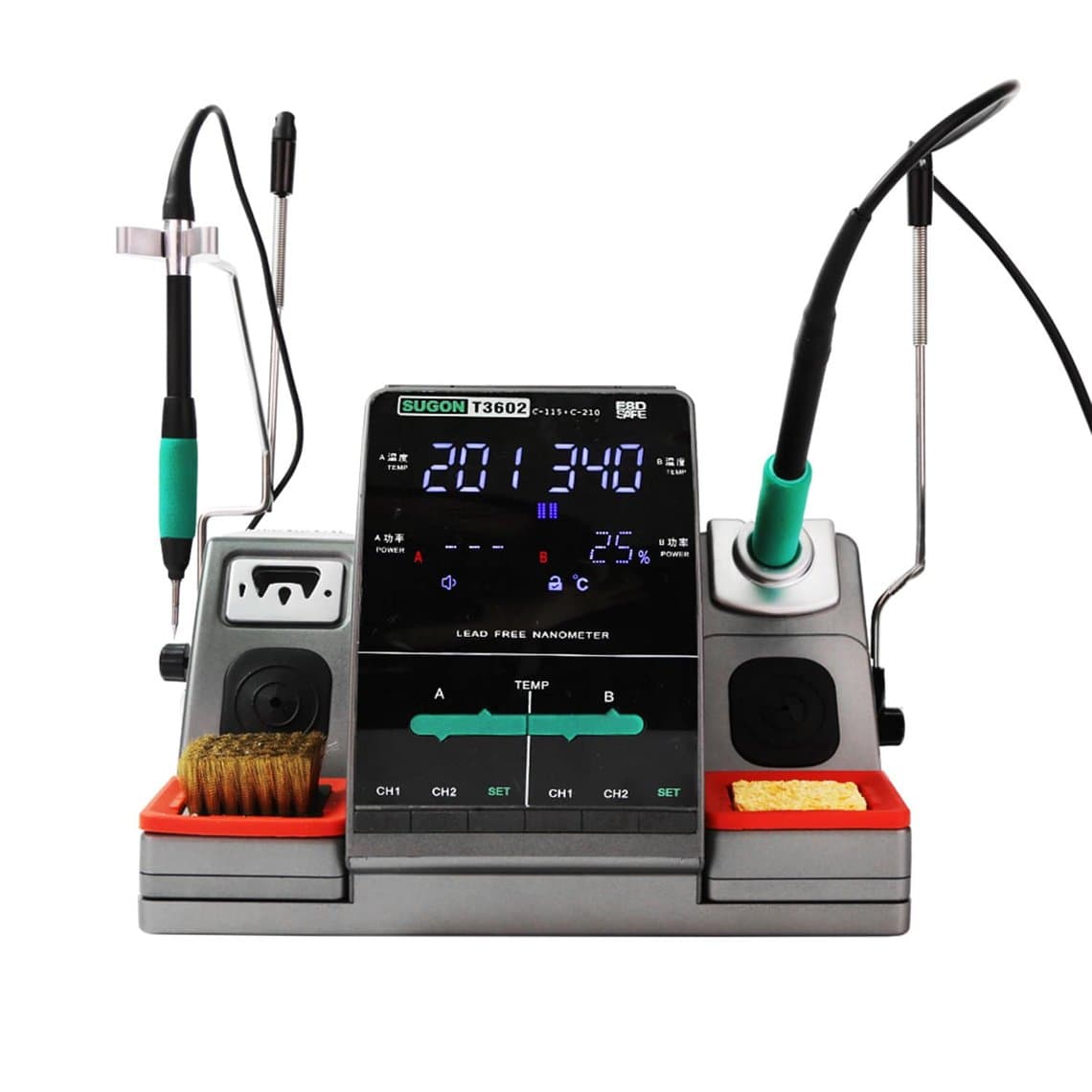
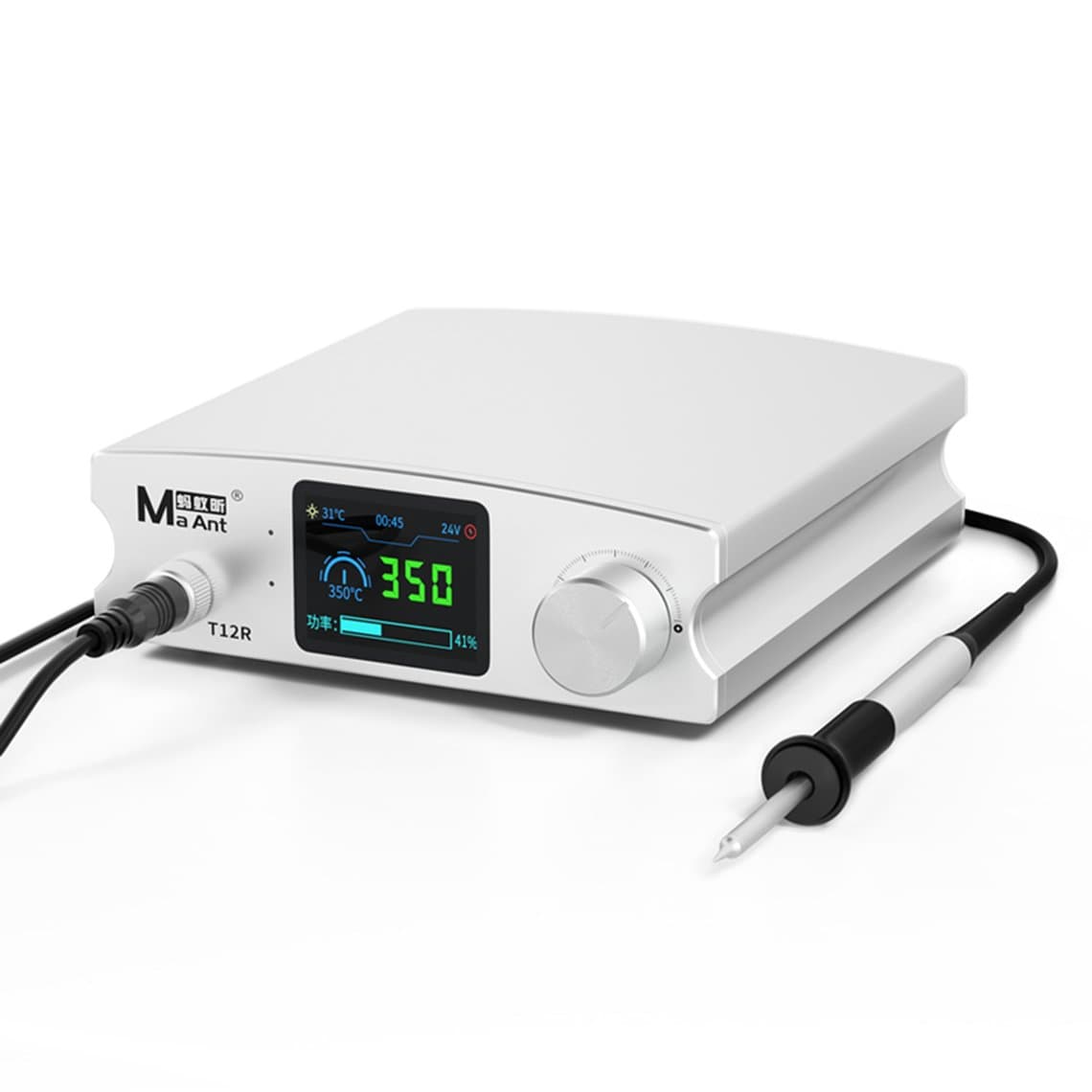
- A temperature-controlled soldering station with fine tips. A cartridge station such as the JBC NASE-2C nano soldering station or the Sugon T3602 double station heats small joints fast and accurately. For general bench work, the Maant T12R smart soldering station is a practical choice. See all options under soldering stations.
- Hot air for removing and refitting ICs.
- A stereo microscope for inspecting fine pins and solder joints. See microscopes.
- A DC power supply and multimeter to find shorts by measuring the charging line.
Tell the customer up front that board repair costs more and takes longer, and that liquid-damaged boards may have other hidden faults.
Safety: heat, ESD and the battery
- Disconnect the battery before unplugging or replacing any flex, and before any soldering.
- Keep heat off the battery. When using hot air near the bottom of the board, remove the battery or shield it. A heated lithium cell can swell, vent or catch fire.
- Never pry against the battery or puncture it with tools while freeing a glued flex.
- Use ESD protection: a grounded mat and wrist strap protect the charging circuit and the board from static damage.
- Clean the port with the phone powered off and never with metal tools.
Common mistakes
- Replacing a flex when the port only needed cleaning.
- Quoting board repair without trying a known-good flex first.
- Forgetting the small retaining plastics and foam, leading to mic or rattle complaints.
- Testing only charging and missing a dead microphone on the new flex.
- Ordering a flex for the wrong model in a family, such as 12 Mini vs 12 Pro Max.
- Tearing the new flex by lifting it cold from its adhesive.
Questions
How do I know if my iPhone charging port needs replacing?
Clean the port first and try a known-good cable. If charging still cuts out when the plug moves, the plug feels loose, or the phone does not charge at all, the port flex is the usual cause. A USB tester reading helps confirm it before you open the phone.
Is iPhone charging port repair a soldering job?
On most iPhone models, no. The port is on a flex cable that connects with a press-fit connector, so the repair is a part swap. Soldering is only needed when the fault is on the logic board, such as a failed charging IC.
Why does my iPhone say charging but the percentage does not go up?
This is often called fake charging. It can come from a weak battery, a damaged flex or a fault in the board charging circuit. Test with a known-good battery and flex first; if both are fine, the board needs repair.
Can a bad charging port affect the microphone?
Yes. On many iPhone models the bottom microphone is on the same flex as the charging port. Liquid damage or a broken flex can stop both, which is why you should test calls and voice memos after a port replacement.
Find charging flex cables and wireless charging assemblies for your models under iPhone parts, and equip your bench from our soldering stations. Wholesale prices unlock after $500 of purchases through our wholesale program, and Quick Order lets you add parts by SKU or CSV. Everything is tested before it ships from Shenzhen by DHL, FedEx and UPS.