iPhone Not Charging: A Technician's Diagnostic Flow
17 November 2026 · LightspeedTools team
Short answer: When an iPhone is not charging, work from the outside in: rule out the cable, charger and software first, then clean and inspect the port, then measure what current the phone actually draws. If a known-good cable and charger still give no or very low current, replace the charging port flex; if that fails, test the battery and finally move to board-level checks of the charging and USB circuits.
Most "not charging" iPhones on a repair bench turn out to be simple: lint in the port, a worn cable, or a damaged charging flex. The expensive mistakes happen when a technician jumps straight to the board, or swaps parts without measuring. This flow keeps the diagnosis fast, repeatable and easy to explain to the customer.
Step 1: Get the full story from the customer
Two minutes of questions can save an hour of testing. Ask:
- Does it not charge at all, charge slowly, or charge only at certain angles?
- Does wireless charging still work? (On models that support it.)
- Has the phone been dropped, exposed to liquid, or repaired before?
- Does it stop at 80% or pause partway through?
- Did the problem start after an iOS update or a battery replacement?
"Charges only at an angle" points to the port or flex. "Wired fails but wireless works" also points to the port side. "Nothing works, wired or wireless" points to the battery, charging circuit or a deeper board fault.
Step 2: Rule out the simple causes
Cable and charger
Always test with your own known-good cable and adapter. Customers' cables fail far more often than they think, especially at the connector end. Do not skip this step even when the customer swears they tried another cable.
Software and charging features
Several normal iOS behaviours look like a fault:
- Optimised Battery Charging can hold the phone at 80% and finish later, based on the user's routine.
- Charge limit settings on newer models can cap charging at a set percentage.
- Temperature protection pauses charging when the phone is too hot or too cold; the lock screen may say charging is on hold.
- Liquid detection on recent models shows an alert and blocks charging through the port until it dries.
- Accessory warnings such as "This accessory may not be supported" often mean a damaged cable, dirty port or failing flex.
Check Settings > Battery for health and charging messages, and do a force restart. A crashed charging process after an update is rare, but a restart costs nothing.
Step 3: Clean and inspect the port
Pocket lint packs into the bottom of Lightning and USB-C ports and stops the plug seating fully. The plug then only touches some pins, so charging becomes intermittent or stops.
- Power the phone off.
- Use a bright light and magnification to look inside the port.
- Remove debris with a non-conductive pick or a wooden or plastic tool. Work gently along the back wall; do not lever against the pins.
- Check for green or white corrosion, bent pins (USB-C has a centre tongue that can be damaged), or burn marks.
- Re-test with your known-good cable. The plug should click in firmly.
Safety note: never use metal tools in a powered port, and never use compressed air at close range or liquids that leave residue. A shorted pin can damage the charging circuit on the board.
Step 4: Measure, don't guess
A USB tester between the charger and the cable shows voltage and current in real time. It turns "it seems slow" into a number you can compare and show the customer. Browse our USB testers for inline meters suited to Lightning and USB-C work.
The most reliable method is comparison: test the faulty phone and a known-good phone of the same model with the same charger and cable, at a similar battery level. Then read the result:
| What you see | Most likely cause | Next step |
|---|---|---|
| No current at all, phone does not react | Port flex, battery or board fault | Swap charging flex, then test battery |
| Very low current compared with a good phone | Dirty or damaged port, flex, or charging circuit limiting | Clean port, then try a new flex |
| Current drops in and out when the plug moves | Worn port or broken flex | Replace charging port flex |
| Normal current but percentage barely rises | Worn battery or heavy background drain | Check battery health, test with a new battery |
| Current normal, phone gets hot and charging pauses | Temperature protection, battery or board issue | Check battery, look for liquid damage |
Exact current figures vary by model, charger, cable and battery level, which is why a known-good reference phone beats a memorised number.
Step 5: Replace the charging port flex
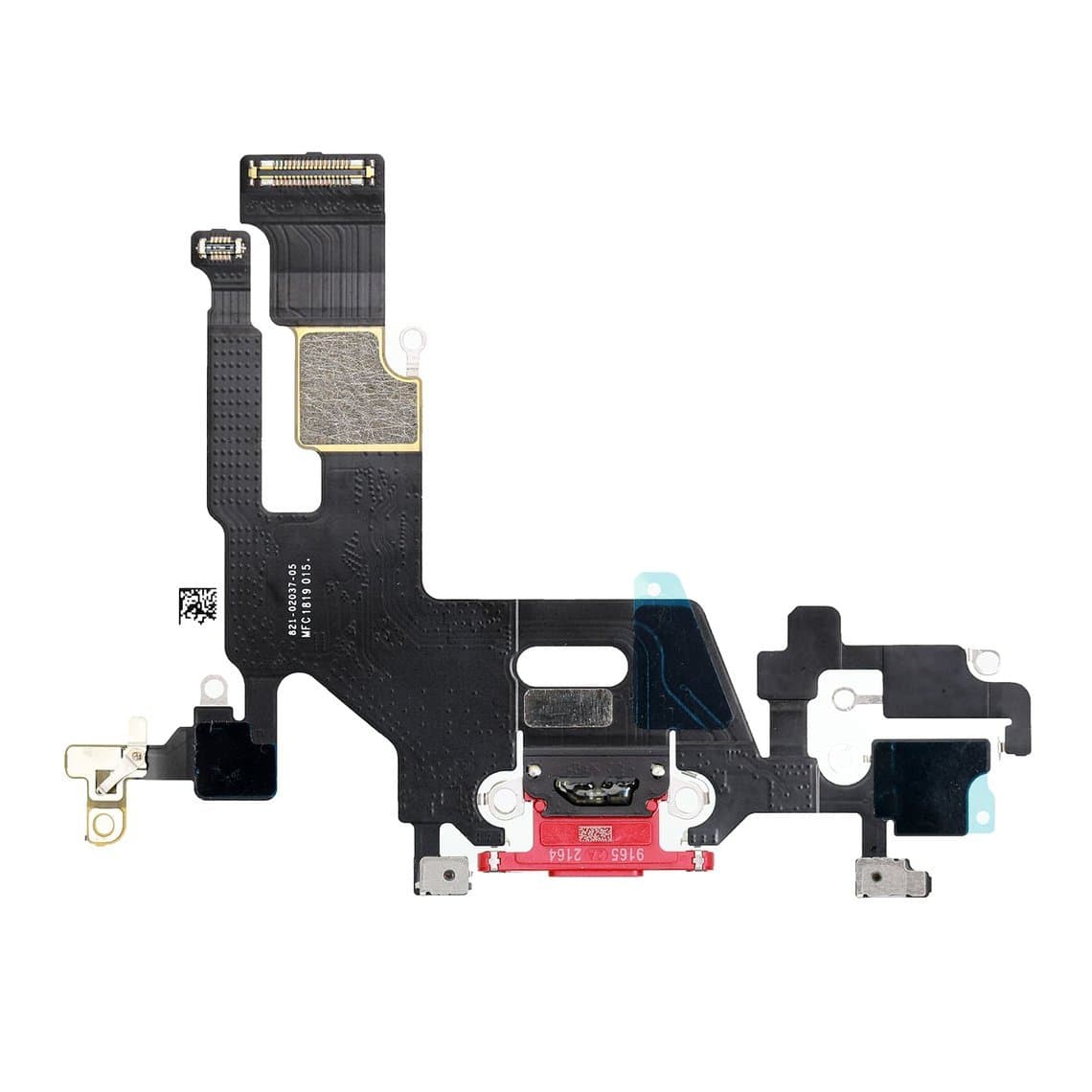
If the port is clean but charging is still absent, low or angle-dependent, the charging flex is the most common culprit. On iPhones the port is part of a flex assembly that also carries the microphones and, on some models, other connections, so a faulty flex can cause call or audio problems too.
Fit the correct part for the exact model; flexes for similar-looking models are often not interchangeable. Examples from our range include the iPhone 11 USB charging flex, the iPhone 12 / 12 Pro charging flex, the iPhone SE 2nd charging flex and the USB-C iPhone 15 charging port flex. On the iPhone 8, a charging dock flex with home button return solution also helps when the home button has stopped responding.
Tips for a clean job:
- Disconnect the battery before touching any flex.
- Test the new flex before fully closing the phone: charging, microphones and accessory recognition.
- Transfer any brackets, gaskets and adhesive so water resistance and fit are not compromised.
- Check the flex connector on the board for bent pins or debris before plugging in.
Step 6: Check wireless charging separately
On models with wireless charging, a phone that charges by cable but not on a pad usually has a damaged charging coil flex, often after a back glass break or a bent frame. Replace the coil assembly for that model, for example the iPhone 12 wireless and NFC charging flex, the iPhone 14 Plus wireless and NFC flex, or the iPhone X wireless charging chip with flex. Because the coil also carries NFC on many models, a damaged coil can affect Apple Pay as well.
Step 7: Test the battery
A deeply discharged or failed battery can stop a phone charging or powering on, even with a perfect port. Signs include a phone that shows the charging screen and then dies, very fast percentage drops, swelling, or a battery health warning.
The quickest test is to fit a known-good battery temporarily. A bench DC power supply with a boot cable lets you power the phone without its battery and watch current draw on power-up. That separates a battery fault from a board fault in minutes.
Safety note: never puncture, bend or heat a swollen battery. Remove it with care, store it in a fire-safe container and recycle it properly. Set the power supply voltage to suit the phone's battery and use current limiting.
After replacing a battery with a non-Apple part, recent iPhones show an "Unknown part" notice and may not display battery health. The phone charges and works normally. On supported models, battery health data can be restored with a programmer.
Step 8: Board-level checks
If a new flex and a known-good battery still do not fix it, the fault is on the logic board. Common areas are the USB control circuit (on Lightning models, the Tristar or Hydra chip), the charging IC, and filters and fuses on the charging line. Look for:
- Liquid damage or corrosion around the port connector and charging circuits.
- Abnormal current on a DC power supply, such as current draw before the power button is pressed, which can indicate a short.
- A phone that charges from a computer but not a wall charger, or the reverse, which can point to USB control problems.
Board work needs microsoldering skills, schematics and a microscope. If your shop does not do it, quote honestly and refer it on rather than swapping more parts.
Common mistakes to avoid
- Trusting the customer's cable instead of your own.
- Replacing the battery when the port is just full of lint.
- Fitting a flex for the wrong model variant.
- Closing the phone before testing charging, microphones and Face ID or Touch ID.
- Forgetting to explain normal iOS behaviour such as 80% holds and heat pauses.
Questions
Why is my iPhone plugged in but not charging?
The most common causes are a faulty cable or adapter, lint in the charging port, or temperature protection pausing charging. If cleaning the port and trying a known-good cable does not help, the charging port flex or battery is the next suspect.
How do I know if my iPhone charging port is broken?
Signs include charging only at certain angles, the plug feeling loose, accessory warnings, or charging stopping when the cable moves. If the port is clean and a known-good cable still gives no or intermittent current on a USB tester, the port flex usually needs replacing.
Why does my iPhone stop charging at 80%?
This is usually Optimised Battery Charging or a charge limit setting, both designed to reduce battery wear. Heat can also pause charging. Check Settings > Battery before treating it as a fault.
Can a bad battery stop an iPhone from charging?
Yes. A failed or deeply discharged battery can stop charging or keep the phone from powering on. Testing with a known-good battery or a DC power supply shows quickly whether the battery or the board is at fault.
Stock up on charging flexes, wireless coils and batteries by model in our iPhone parts section, and keep a USB tester on every bench. All parts are tested before shipping from Shenzhen by DHL, FedEx or UPS. Open a wholesale account to unlock wholesale prices after $500 of purchases, and use quick order to buy by SKU or CSV upload.