iPhone Speaker Not Working on Calls: Earpiece Diagnosis Guide
17 November 2026 · LightspeedTools team
Short answer: If an iPhone is silent on calls but speakerphone works, the fault is almost always the earpiece (top) speaker path: a blocked mesh, a dislodged or damaged earpiece speaker, or its flex cable. If both the earpiece and the loudspeaker are silent, check call audio routing, Bluetooth and software first, then look at liquid damage or board-level audio faults.
Earpiece or loudspeaker: know which one has failed
An iPhone has two output speakers that matter on a call. The earpiece sits in the slot at the top of the screen and plays the other caller's voice when the phone is held to the ear. The loudspeaker sits at the bottom edge, next to the charging port, and handles speakerphone, ringtones and most media. From iPhone 7 onwards the earpiece also works as the second speaker for stereo playback, which gives you an extra test.
Pin the symptom down first: "speaker not working on calls" can also mean the caller cannot hear the customer, which is a microphone fault.
The two-minute quick test
- Make a call to a known line and hold the phone to your ear. Note whether the voice is silent, quiet, distorted or normal.
- During the same call, tap the speaker button. If the voice comes through clearly on speakerphone, the call itself and the main audio path are working.
- Ask the other person whether they can hear you. If they cannot, you are also looking at a microphone fault.
- Outside a call, play music and turn the phone to landscape. On iPhone 7 and later you should hear sound from both ends. Cover the bottom speaker with a finger; if the top goes silent too, the earpiece is not producing sound at all.
- Check whether the speaker button is greyed out during a call. A greyed-out button points away from the speaker itself and toward software or the board.
| Symptom | Most likely cause | First action |
|---|---|---|
| Earpiece silent, speakerphone fine | Blocked mesh, earpiece speaker or its flex | Inspect and clean mesh, then test with a known-good earpiece |
| Earpiece quiet or muffled | Dust and skin oil in the mesh, screen protector over the slot | Remove protector, clean the grille |
| Earpiece crackles or buzzes | Damaged speaker diaphragm, liquid residue, loose seating | Reseat, then replace the earpiece |
| Both earpiece and loudspeaker silent on calls | Audio routed to Bluetooth or a hearing device, software fault | Check routing and Bluetooth, restart, update |
| Speaker button greyed out, no audio at all | Board-level audio fault on some older models | Microscope inspection, board repair or refer out |
| Earpiece works but Face ID or auto-dim fails after a repair | Damaged sensor parts on the earpiece flex | Inspect flex, fit the original part where possible |
Software and settings checks before you open the phone
A surprising number of "dead earpiece" phones are simply sending audio somewhere else. Work through these before reaching for tools:
- Bluetooth: Turn Bluetooth off and call again. A car kit, earbuds in a pocket or a forgotten speaker can grab call audio silently.
- Call Audio Routing: In Settings, under Accessibility and Touch, Call Audio Routing should be set to Automatic. If it is set to Speaker, every call goes to the bottom speaker and the earpiece looks dead.
- Hearing devices: Check Accessibility for paired hearing aids or sound features that change call output.
- Call volume: Press volume up during a live call; it is set separately from media volume.
- Restart and update: A force restart clears a stuck audio service. Install the current iOS version if one is pending.
If the earpiece still plays stereo media but fails only on calls, suspect software or routing: a dead speaker is dead for everything.
Blocked mesh: the most common physical cause
The earpiece grille is a fine mesh that collects pocket lint, makeup and skin oil. Screen protectors with a poorly cut earpiece slot, and some thick cases, cause the same symptom.
- Remove any screen protector and test again before anything else.
- Look at the grille under good light or a microscope. A grey felt-like layer is debris.
- Brush gently with a soft, dry, clean brush. A small amount of isopropyl alcohol on the brush helps lift oil; let it dry fully before testing.
- Do not push needles or picks through the mesh. You can puncture the speaker diaphragm behind it.
- Do not blast compressed air into the slot at close range.
Earpiece speaker failure
When the mesh is clean and the settings are right, the speaker itself is next. Earpieces fail from drops (the magnet or coil comes loose), liquid, corrosion on the contact pads, and damage during an earlier screen repair.
The reliable way to confirm it is to test with a known-good part. Keep a tested earpiece for the models you see most, connect it without fully assembling the phone, and make a call. If the new part works, the old speaker or flex was the fault. If it does not, move on to the connector, the flex and the board.
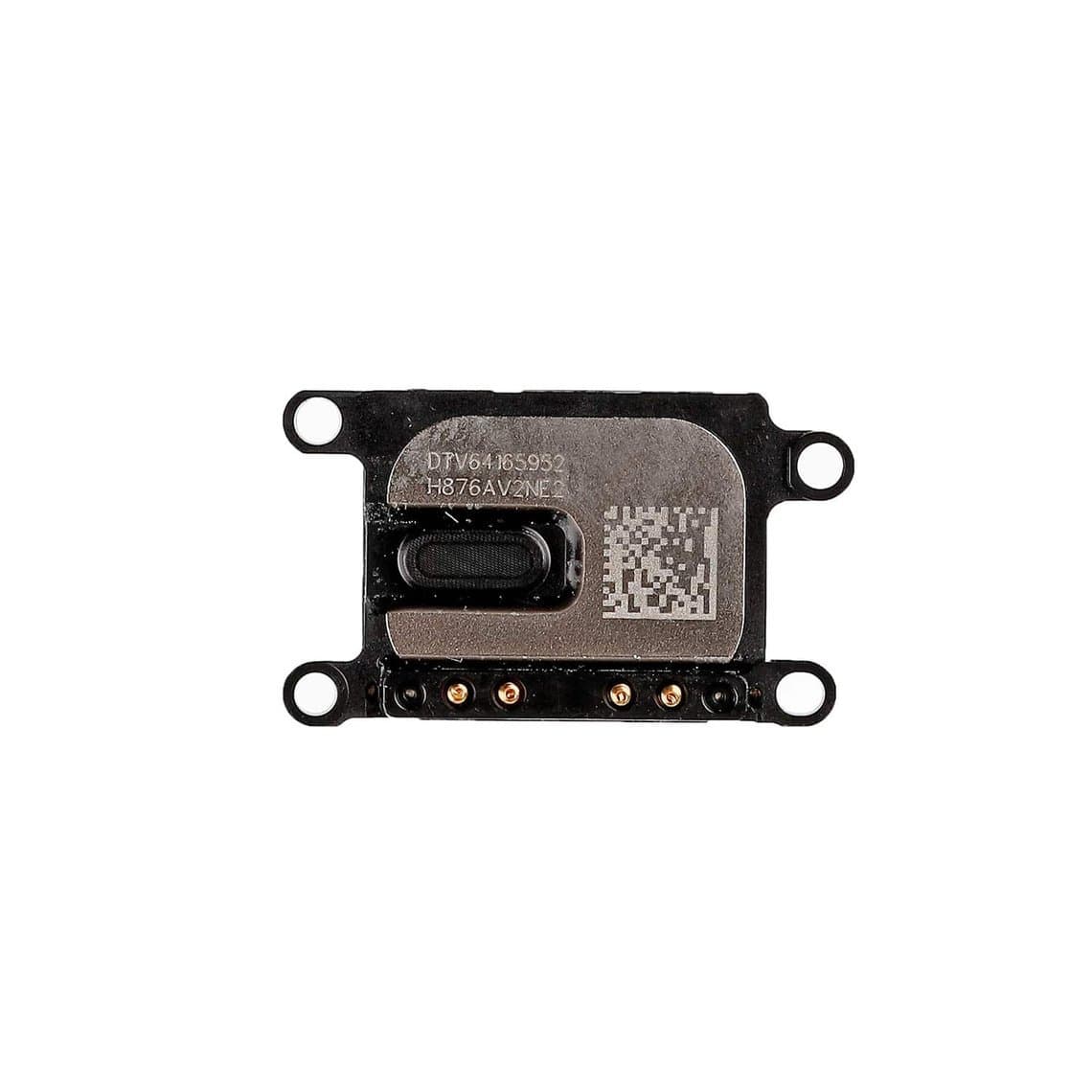
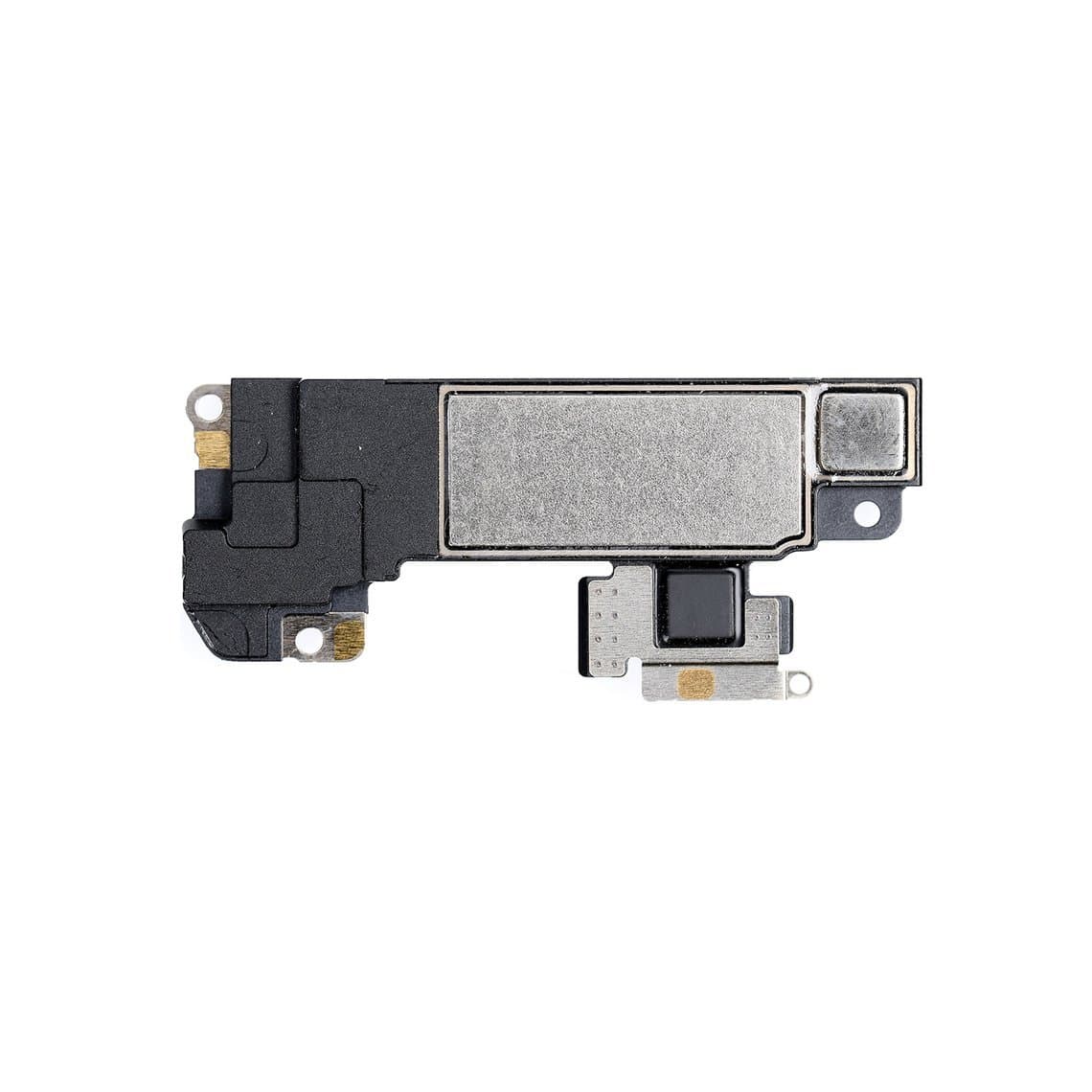
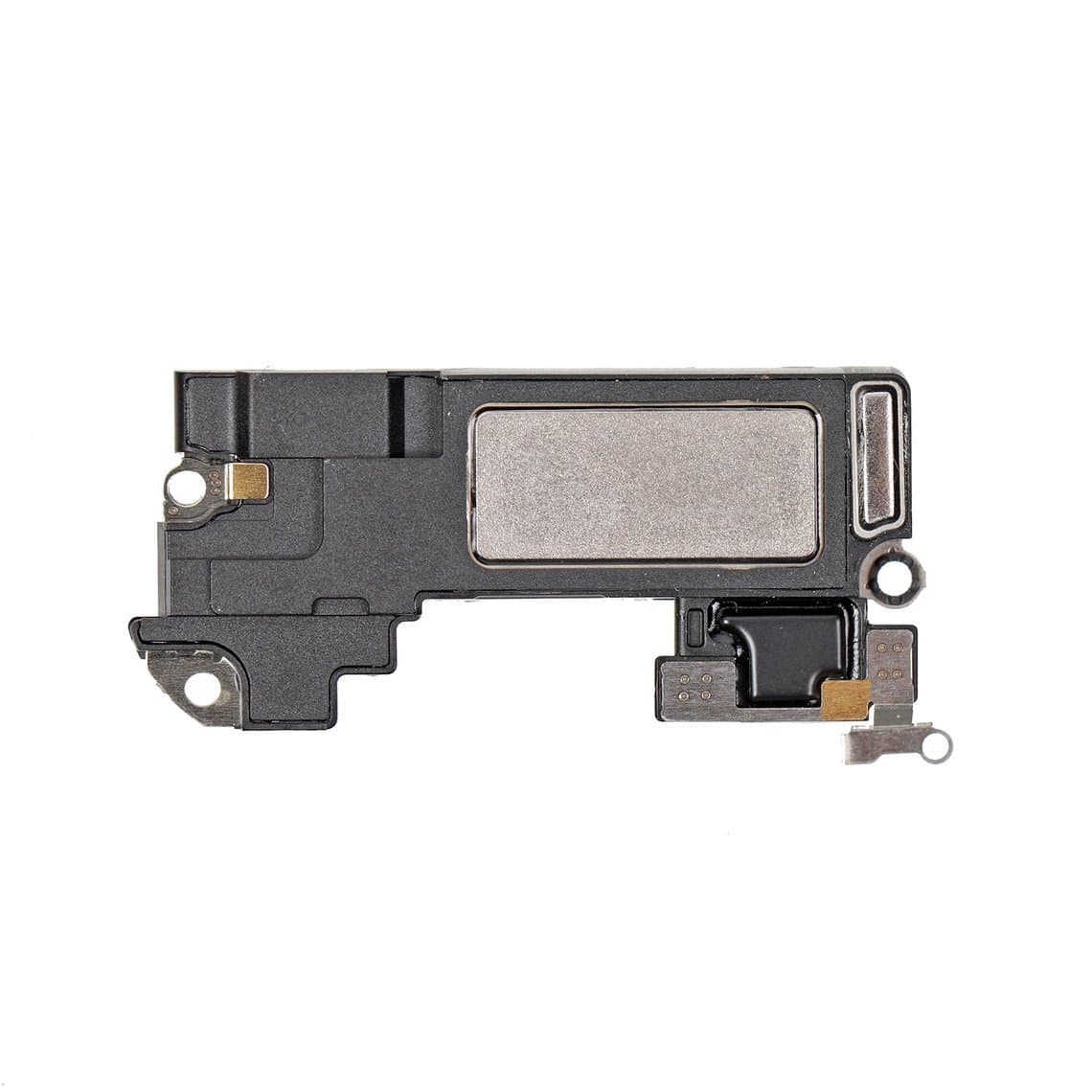
For the older Home-button generation, a standalone iPhone 8/SE 2nd/SE 3rd ear speaker covers a large share of shop work. On later models the earpiece is often sold either as a bare speaker, such as the iPhone XR ear speaker or iPhone 12 ear speaker, or as a complete assembly with its sensor flex attached.
The earpiece flex carries sensors on many models
This is where earpiece work becomes risky. On many iPhones the earpiece connects through a flex that also carries the ambient light sensor, the proximity sensor and often the front microphone. Exactly what sits on that flex varies by model, so check a teardown for the phone on your bench.
- Auto-dim and proximity: If the proximity sensor is damaged, the screen may stay on during calls and the cheek presses buttons, or it may go black and stay black. A damaged ambient light sensor stops auto-brightness working.
- Face ID: On Face ID models from roughly the X to the 11 series, the earpiece flex also carries parts that the TrueDepth system relies on. Tearing that flex, or replacing it with a poor copy, can lead to "Face ID is not available". Handle it as if Face ID depends on it, because on these models it may.
- Front microphone: If the caller suddenly cannot hear the customer on speakerphone after an earpiece job, the mic on the same flex may be damaged.
Where the flex is undamaged, transfer the customer's original and replace only the bare speaker. Where the whole flex is damaged, an assembly with the sensors already fitted, such as the iPhone X ambient light sensor with ear speaker assembly, iPhone 11 ear speaker with ambient light sensor or iPhone 11 Pro Max ambient light sensor with ear speaker assembly, restores the earpiece and auto-dim. Tell the customer before the job that a replacement sensor flex may not restore Face ID on every model, and that True Tone or some Face ID issues can sometimes be handled with a programmer on supported models.
Screen replacements and the earpiece
Many earpiece complaints arrive straight after a screen repair. On older models, roughly up to the 12 series, the earpiece and its sensor flex sit on the back of the display and must be transferred to the new screen. That transfer is where flexes tear, sensors get left behind and earpieces are seated crooked. On newer models the earpiece is generally mounted in the frame rather than on the display, so a screen swap disturbs it less, but layouts differ, so confirm for the specific model.
Good transfer habits prevent most comebacks:
- Disconnect the battery before touching any flex.
- Warm old adhesive gently and lift the sensor flex slowly with a plastic tool, never a metal blade.
- Keep the earpiece gasket and any foam pieces; a missing gasket can make the earpiece buzz or sound thin.
- Test the earpiece, proximity sensor and auto-brightness before closing the phone.
Our step-by-step screen replacement guide covers the transfer order; for screen grades and warranties see quality grades and our iPhone screens.
Liquid damage
A wet earpiece often sounds muffled or crackly and may recover once dry. A submerged phone needs more: corrosion forms on the earpiece contacts, the flex connector and nearby components.
Open the phone, disconnect the battery, and inspect the earpiece connector and the area around it under a microscope. Clean corrosion with isopropyl alcohol and a soft brush, dry completely, then retest with a known-good earpiece. Our water damage bench process lays out the full routine. A stereo microscope from our microscopes range makes corrosion on small connectors much easier to spot.
Board-level audio faults on some older models
If a known-good earpiece and a known-good loudspeaker both stay silent, and the speaker button is greyed out on calls, the fault is likely on the board. Some iPhone 7 and 7 Plus units are well known for an audio IC fault that shows this pattern, often with voice memos failing too. Other older models can show similar faults after drops or liquid damage.
This is microsoldering work. If your shop does not do board repair, refer the job rather than replacing parts that are not faulty.
Safety and good practice
- Work on an ESD mat with a grounded wrist strap. Sensor flexes are small and static-sensitive.
- Disconnect the battery first. Do not puncture or bend a lithium battery, and do not apply heat to a swollen one.
- Use moderate heat on adhesives. Excess heat can damage the display and the sensor parts around the earpiece.
Common mistakes
- Replacing the earpiece before checking Call Audio Routing and Bluetooth.
- Pushing a pin through the mesh and destroying the speaker behind it.
- Replacing a whole sensor assembly when only the bare speaker had failed, and losing Face ID or True Tone behaviour in the process.
Questions
Why can I hear calls on speakerphone but not through the earpiece?
Because speakerphone uses the bottom loudspeaker, so the call and the main audio path are working. The problem sits in the earpiece path: a blocked grille, a screen protector over the slot, a damaged earpiece or its flex. Clean the mesh first, then test with a known-good earpiece.
Can a screen protector make the iPhone earpiece quiet?
Yes. A protector with a badly cut or covered earpiece slot can muffle call audio, and so can dirt trapped under its edge. Remove it and make a test call before assuming a hardware fault.
Will replacing the earpiece affect Face ID?
Replacing only the bare speaker should not. On some Face ID models, especially from the X to the 11 series, the earpiece flex also carries sensor parts that Face ID relies on, so damaging that flex or fitting a poor replacement can stop Face ID. Transfer the original flex whenever it is intact.
Why is the speaker button greyed out during calls?
A greyed-out speaker button usually means the phone cannot talk to its audio hardware properly. A restart and update can rule out software, but on some older models, notably some iPhone 7 and 7 Plus units, it points to a board-level audio fault that needs microsoldering.
Stock the earpiece speakers and sensor assemblies you use most from our iPhone parts range. Shops buying regularly can open a wholesale account for trade pricing, or reorder fast by SKU or CSV through Quick Order.