MacBook Not Charging: Board-Level Diagnosis Step by Step
17 November 2026 · LightspeedTools team
Short answer: When a MacBook is not charging, rule out the simple causes first: the adapter wattage and cable, the outlet, the MagSafe pins or USB-C port, and macOS charging settings. On Intel Macs try an SMC reset, then check battery health and cycle count. If it still will not charge, move to hardware: the MagSafe DC-in board or USB-C port board and their flex cables, then the charging and USB-C power controller circuits on the logic board, which need a USB-C power meter, a bench supply, schematics and a microscope.
"Not charging" covers several different faults. The Mac may show the plug icon but stay at the same percentage, it may show nothing at all when the charger is connected, or it may run on the adapter but never charge the battery. Each points to a different part of the power path. This guide works from the cheapest checks to board-level work, for both MagSafe and USB-C generations.
Step 1: confirm the adapter and cable
A large share of "dead charging" Macs come in with a faulty or wrong adapter. Before opening anything:
- Check the wattage. A low-wattage adapter may charge very slowly, or not at all while the Mac is busy. Use at least the wattage the Mac shipped with: for example a 60W MagSafe adapter for a 13" MacBook Pro of that era, or an 85W MagSafe 2 adapter for a 15" Retina MacBook Pro.
- Check the connector type. MagSafe (L-style) and MagSafe 2 (T-style) are not the same connector; an adapter that physically will not seat cannot charge.
- For USB-C models, use a known-good USB-C adapter of the right rating, such as the 61W USB-C adapter for 13" models or the 96W USB-C adapter for the 16" MacBook Pro, and a cable rated for that power. Many USB-C cables only carry a lower current.
- Swap everything. Try a second known-good adapter, a second cable and a different wall outlet. On USB-C models, try every port, since each port has its own circuit.
Retire any adapter with a frayed cable or burnt connector.
Step 2: MagSafe pins, LED and port debris
On MagSafe models, the connector LED is your first diagnostic signal:
| LED behaviour | What it usually means |
|---|---|
| Amber or orange | Adapter detected, battery charging |
| Green | Adapter detected, battery full (or charging held) |
| No light | Adapter, pins or DC-in board not making contact, or the board is not responding |
| Flickering or changing | Poor pin contact, damaged cable, or a fault on the board side |
The MagSafe connector uses spring-loaded pins. Check that each pin moves freely and springs back; a stuck pin is a common cause of no LED. The magnet also collects steel dust and small metal debris, which can stop the connector seating or short the contacts. Clean the connector and the port with a plastic tool and isopropyl alcohol, with the adapter unplugged.
On USB-C models, look into each port with a light and magnification. Lint, debris and corrosion on the pins can stop the charger negotiating power. Clean with plastic or a soft brush and alcohol, never metal picks.
Step 3: macOS settings, SMC reset and battery health
Charging held by macOS
Recent versions of macOS can pause charging on purpose, for example with optimized battery charging holding the battery around 80% or showing "Charging On Hold". Battery temperature can also pause charging. Check the battery menu and settings before assuming a hardware fault, and note what message the customer actually sees.
SMC reset (Intel models)
On Intel MacBooks, the System Management Controller (SMC) handles charging. Resetting it clears many software-level charging faults. The procedure differs between models with removable batteries, non-removable batteries and the T2 chip, so follow Apple's instructions for the exact model. On Apple silicon Macs there is no separate SMC reset; a full shutdown, a short wait and a restart does the equivalent job.
Battery health and cycle count
Open System Information and check the Power section: cycle count, condition and whether the battery is detected at all. A battery marked "Service Recommended", one with a very high cycle count, or one not detected points toward the battery, its connector or its flex rather than the charging circuit. A deeply discharged battery may also refuse to charge until its protection circuit recovers. If the battery is swollen, stop here and replace it before any further testing.
Step 4: DC-in board, port board and flex cables
On many MacBooks the charging connector is not on the logic board but on a small separate board joined by a cable or flex. These boards are cheap, easy to swap and a common failure point, especially after the cable has been yanked or the port has been exposed to liquid.
- MagSafe models: a separate DC-in board, such as the MagSafe board 820-2565-A for A1278 and A1286, connects to the logic board through a cable. On some MacBook Air models the MagSafe 2 connector sits on an I/O board along with USB and audio.
- USB-C models: on many 2018 and later Intel MacBook Pros the USB-C ports sit on separate port boards; for example, the Type-C USB I/O board connector for A1989, A1990, A2159 and later. On some earlier USB-C models the ports are soldered to the logic board, which turns a port fault into a board repair. Check the model before ordering.
Inspect the board and its cable under magnification: burnt pins, pitted contacts, cracked solder, corrosion and torn flex are all visible. Swap in a known-good DC-in or port board as a test where you can. If charging returns, the job is done. If not, the fault is on the logic board or in the battery path. You can find these boards and cables by model in laptop internal parts.
Step 5: read the power negotiation with a USB-C meter
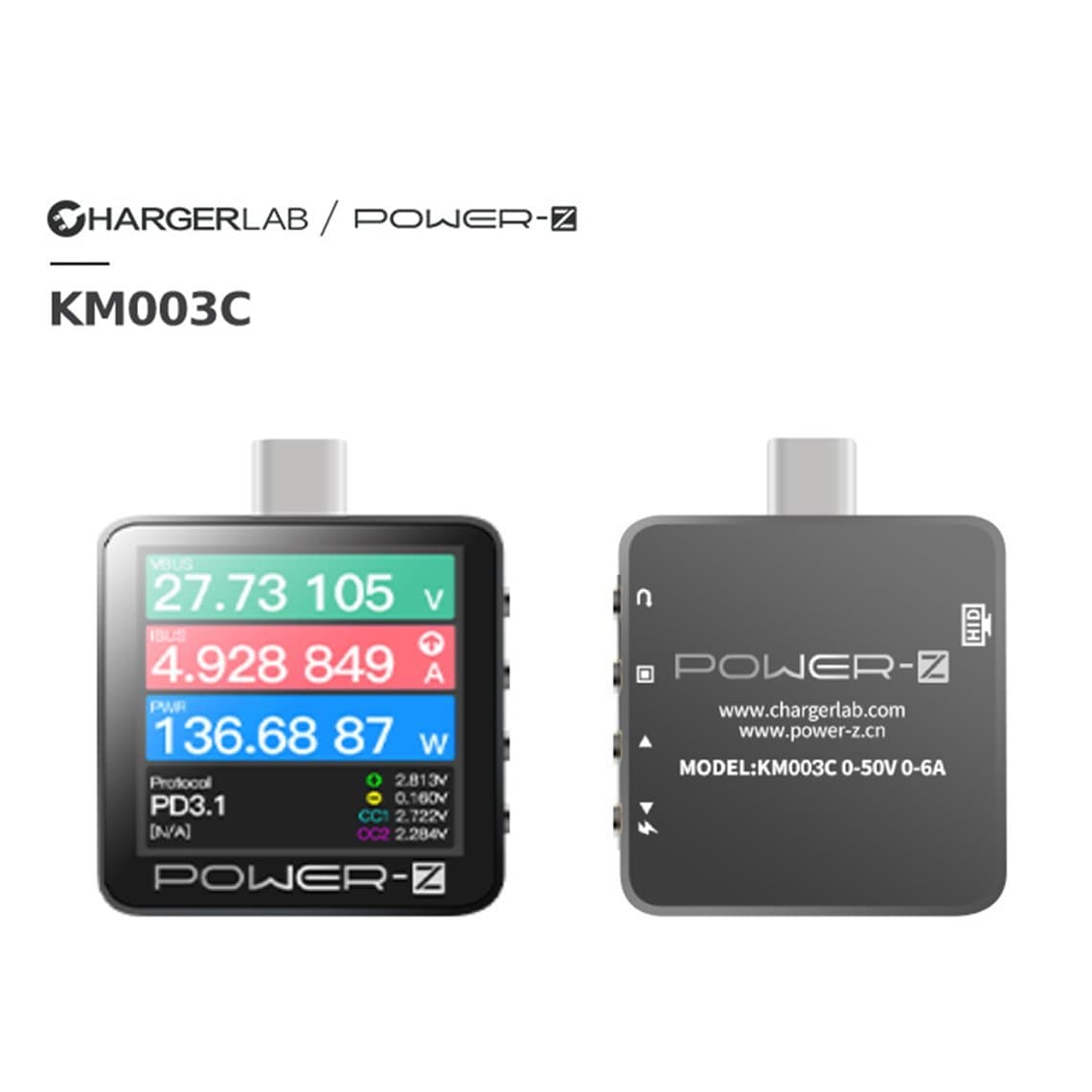
On USB-C MacBooks, the charger and the Mac negotiate voltage through USB Power Delivery (PD). A USB-C power meter between the charger and the Mac shows whether this negotiation happens, which splits the fault in two. A PD-capable tester such as the POWER-Z KM003C also shows the protocol messages; see the full range of USB testers.
| Meter reading | Likely meaning |
|---|---|
| Stays at 5 V, little or no current | PD is not negotiating: port, cable, port board or the USB-C power controller side |
| Rises to a higher voltage (such as 20 V) then drops back | Negotiation starts then fails: controller, protection circuit or a short downstream |
| Higher voltage negotiated, very low current | Board accepts power but is not charging: charging circuit, battery path or a software hold |
| Higher voltage, normal current, battery still not charging | Battery, battery connector or battery flex |
Exact current figures vary by model and battery state, so compare against a known-good unit of the same model where you can. Our USB tester readings guide explains how to read these meters in more detail.
Step 6: board-level diagnosis
When adapter, port board, battery and software are ruled out, the fault is on the logic board. Schematics and boardview for the exact board number are essential here.
USB-C and PD controller chips
On USB-C Intel MacBooks, each port pair is handled by a USB-C port controller. Common examples are the CD3215 and CD3217 families. A failed controller, often from liquid, a bad charger or a damaged port, stops PD negotiation on its ports. Typical signs: one or two ports charge and others do not, or the meter never leaves 5 V on any port. Replacement chips such as the CD3215C00 USB-C port controller require BGA soldering skills, the right reballing stencils, and on some boards correct firmware for the chip. Confirm the exact part on the schematic before ordering.
Charging circuit and main power rail
Behind the input stage sits the charging circuit, which feeds the main power rail and charges the battery. Faults here include shorted capacitors, a failed charger IC or damaged sense resistors. Check the input and main rails for shorts to ground in diode or resistance mode, comparing readings with a known-good board of the same number. A thermal camera or freeze spray helps find the hot part on a shorted rail.
Using a bench power supply
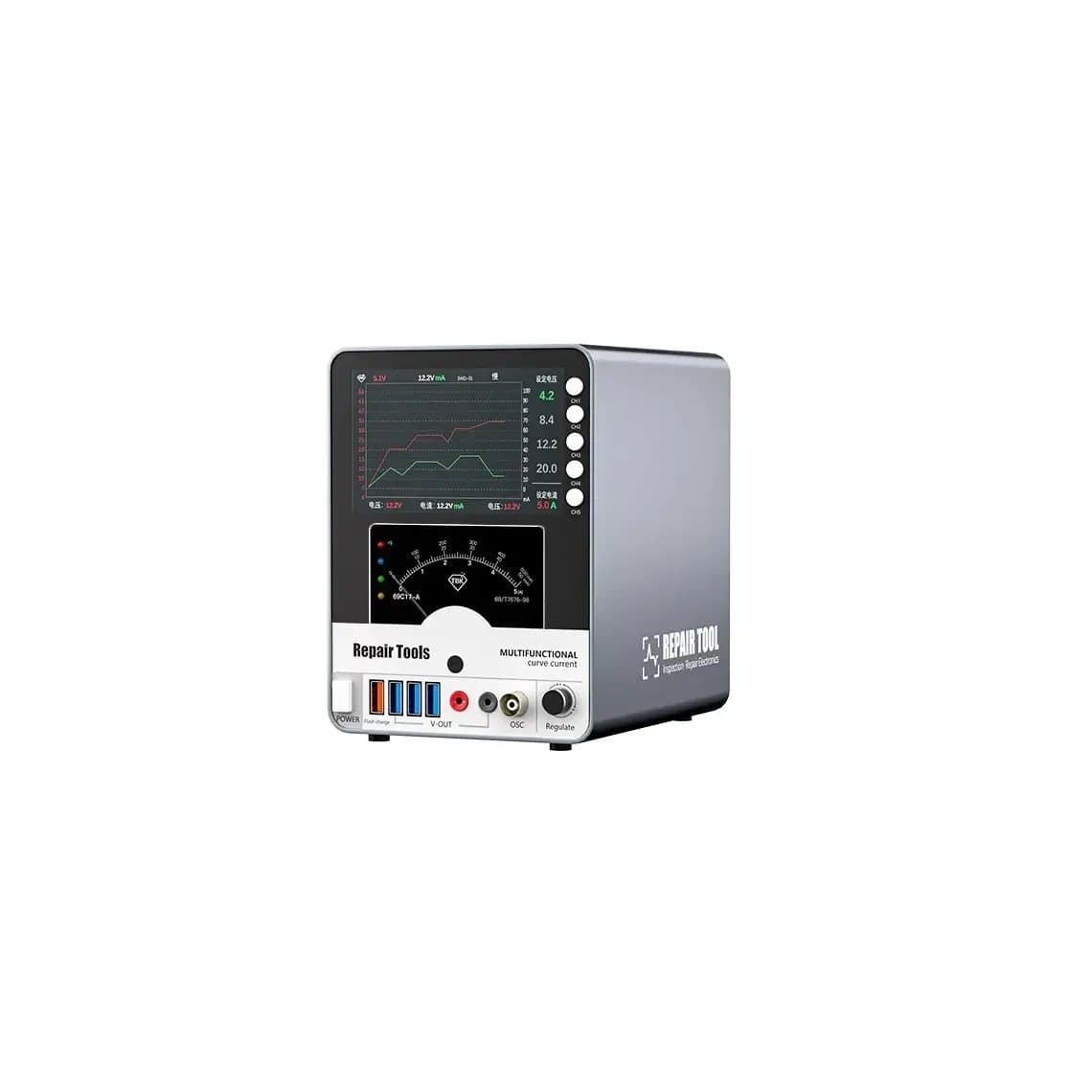
A current-limited bench supply, such as the TBK 217A DC power supply, lets you feed the board in a controlled way and watch current draw. Start with a low current limit, and set voltage according to the input or rail you are powering, using the schematic. A board that instantly hits the current limit at low voltage has a short; one that draws nothing may have an open input or a dead enable circuit. Our DC power supply guide covers the basics, which apply to laptops at higher power.
Liquid damage
Liquid spilled on the keyboard often runs through to the logic board below. Look for green or white corrosion around the charging circuit, the USB-C controllers, the battery connector and the board's power management area. Corrosion can cause shorts, broken traces or false signals that disable charging. Clean thoroughly, ideally with an ultrasonic cleaner and fresh isopropyl alcohol, dry fully, then retest before replacing parts.
Tools for board-level charging repair
- A stereo microscope for inspection and micro-soldering; see microscopes.
- Schematics and boardview for the exact board number.
- A USB-C PD meter and a current-limited bench supply.
- A multimeter, hot air station, soldering iron, flux and BGA stencils.
- Logic board fixtures to hold boards safely; see MacBook repair tools.
Common mistakes
- Opening the Mac before testing with a known-good adapter and cable.
- Missing an "On Hold" or optimized charging message and chasing a hardware fault that does not exist.
- Replacing the battery without checking whether PD negotiation happens at all.
- Powering a board from a bench supply without a current limit.
Questions
Why is my MacBook plugged in but not charging?
Start with the simple causes: macOS may be holding the charge on purpose, the adapter may be too weak, or the cable or port may be faulty. Try a known-good adapter and cable of the right wattage and check the battery menu for an "On Hold" message. If it still does not charge, check battery health and then the port board or logic board.
How do I fix a MagSafe charger with no light?
Check that the pins move freely and clean the connector and port of metal debris. Try a second known-good MagSafe adapter. If neither lights up, the DC-in board, its cable or the logic board input is the likely cause.
Can a MacBook charging port be replaced?
On many models, yes: the charging connector sits on a separate DC-in or port board joined by a cable. On some USB-C models the ports are soldered to the logic board, so replacing them is a micro-soldering job. Check the model number on the bottom case before ordering.
Does an SMC reset fix charging problems?
On Intel MacBooks an SMC reset can clear charging faults caused by the power controller's software state. The procedure varies by model. Apple silicon Macs have no separate SMC reset; a full shutdown and restart does the equivalent.
Find adapters, DC-in boards and USB-C port boards by model in laptop internal parts or on the Mac page, with meters, supplies and fixtures in MacBook repair tools. Repair shops can unlock trade pricing through wholesale and reorder by SKU or CSV with Quick Order.