Phone Not Charging but Connected: 9 Causes and Fixes
17 November 2026 · LightspeedTools team
Short answer: When a phone says it is connected but not charging, the cause is usually a setting or condition, not a broken part: optimized charging holding at 80%, a temperature pause, a weak adapter or a faulty cable, or lint in the port. Work through the free checks first, try wireless charging if the phone supports it, and only then suspect the battery, the port flex or the charging IC.
This checklist works for iPhone and Android. The first half is for anyone with a phone that will not take charge. The second half is for technicians who want a fast bench routine with a USB tester.
1. Charging on hold or optimized charging
Both iPhone and Android can deliberately pause charging to protect the battery. On iPhone, Optimized Battery Charging can hold the phone at 80% and finish later, and some models offer a fixed 80% limit. You may also see a "Charging On Hold" notice. On Android, features such as adaptive charging or Samsung's battery protection option can stop charging at a set level, often around 80 to 85% depending on the version.
Check: if the phone stops at the same percentage every time, look in the battery settings before anything else. This is normal behaviour, not a fault.
2. Temperature pause
Lithium batteries should not charge when too hot or too cold, so phones pause charging outside a safe range. Common triggers are a phone in direct sun, under a pillow, in a thick case, or running games and navigation while charging. iPhone may show a temperature notice or simply hold charging until it cools.
Check: take the case off, close heavy apps, let the phone reach room temperature, then plug in again.
3. Cable and adapter
Cables fail far more often than ports. Inner wires break near the plug, and cheap cables may carry power but not handle fast charge negotiation. Adapters can also lose output.
- Try a different cable you know works on another phone.
- Try a different adapter plugged into a wall socket, not a laptop or a car port.
- For USB-C, flip the plug. If one direction works and the other does not, suspect the cable or the port.
4. Lint or debris in the port
Pocket lint packs into the bottom of Lightning and USB-C ports until the plug no longer seats fully. The phone may connect for a moment, then drop out, or only charge when the cable is held at an angle.
Check: power off the phone, shine a light into the port, and gently lift debris out with a wooden toothpick or plastic pick. Do not use metal pins, and do not blow into the port; breath adds moisture.
5. Moisture detection warning
Many Samsung and other Android phones show a moisture detected warning and block wired charging until the port is dry. iPhone can show a liquid detected alert in the connector. Corrosion inside the port can trigger the same warning even when the phone is dry.
Check: unplug, let the phone dry naturally for some time with the port facing down, and do not use heat or rice. Wireless charging may still work in the meantime on phones that support it. If the warning keeps coming back on a dry phone, the port may be corroded.
6. Software glitches
A frozen charging service or a bug can leave the phone showing "connected" while ignoring the charger.
- Restart the phone, or force restart if it is unresponsive.
- Install any pending system update.
- On Android, try safe mode to rule out a third-party app.
- On iPhone, an "accessory may not be supported" message usually points at the cable or a damaged port contact.
7. Slow-charging adapter or power draw
If the phone shows "connected" or "charging slowly" but the percentage never climbs, it may simply be drawing more than the adapter supplies. A low-power adapter, a long thin cable or a computer USB port cannot keep up with a bright screen, hotspot and gaming at once.
Check: switch the phone off or to airplane mode and charge from a proper wall adapter for 30 minutes. If the level now rises, the hardware is fine.
8. Wireless test
On phones with wireless charging, a wireless pad is a simple way to split the problem in two. If the phone charges wirelessly but not by cable, the battery is accepting charge and the fault is most likely in the cable, port, port flex or the wired charging path. If it will not charge either way, look harder at the battery, temperature or the board.
9. Worn or deeply discharged battery
A battery left flat for a long time can drop so low that the phone shows nothing, or only a charging screen, for several minutes after it is plugged in. Leave it on a known good wall charger for at least 30 minutes before you decide it is dead. A worn battery can also refuse to climb past a certain level, jump in percentage, or shut down early. Check battery health in settings on iPhone, or in the diagnostics app on many Android phones.
Then hardware: port, flex, IC and connector
If every check above passes and the phone still will not charge, the fault is in the hardware:
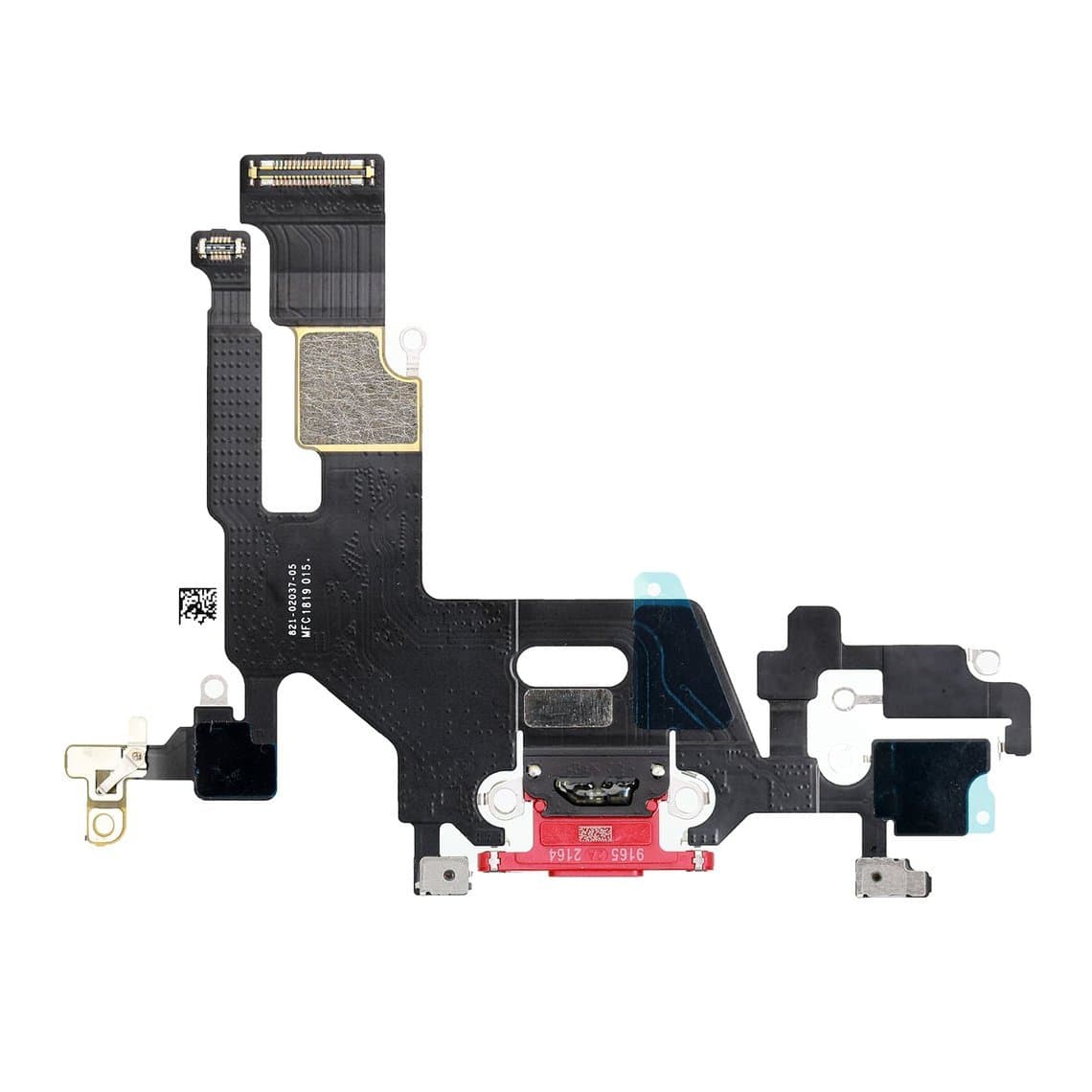
- Charging port or port flex. Loose fit, bent pins, corrosion or a torn flex. On iPhones the port is on a flex such as the iPhone 11 USB charging flex or the iPhone 12/12 Pro USB charging flex. On many Samsung models it sits on a sub-board.
- Charging IC. Damaged by poor chargers, liquid or shorts. This is a board-level repair.
- Battery connector. A dirty, bent or loose battery connector, often after a previous repair or a drop.
- Battery. An internally failed battery may never accept charge. Replacements are on our iPhone batteries page.
For model-specific steps see our iPhone charging port repair guide and the Samsung not charging diagnosis.
Quick decision table
| What you see | Most likely cause | Next step |
|---|---|---|
| Stops at the same level, often 80% | Optimized charging or battery protection | Check battery settings |
| Charging on hold, phone warm | Temperature pause | Cool the phone, remove case |
| Works with another cable | Faulty cable | Replace the cable |
| Only charges at an angle | Lint or worn port | Clean port, then inspect |
| Moisture or liquid warning | Wet or corroded port | Dry naturally, then inspect for corrosion |
| Percentage never rises while in use | Weak adapter or high power draw | Wall adapter, phone idle |
| Wireless works, cable does not | Port, flex or wired charging path | Port or flex replacement |
| Nothing on any charger after 30 minutes | Deep discharge, battery, or board fault | Bench test or repair shop |
When to visit a repair shop
Take the phone in when the port is visibly damaged or corroded, the moisture warning will not clear on a dry phone, the phone gets hot near the port while plugged in, the battery is swollen, or nothing changes after all the checks above. Do not keep plugging in a phone that smells of burning or has a bulging screen or back. A swollen lithium battery is a fire risk and should be handled by a technician.
For technicians: quick bench tests
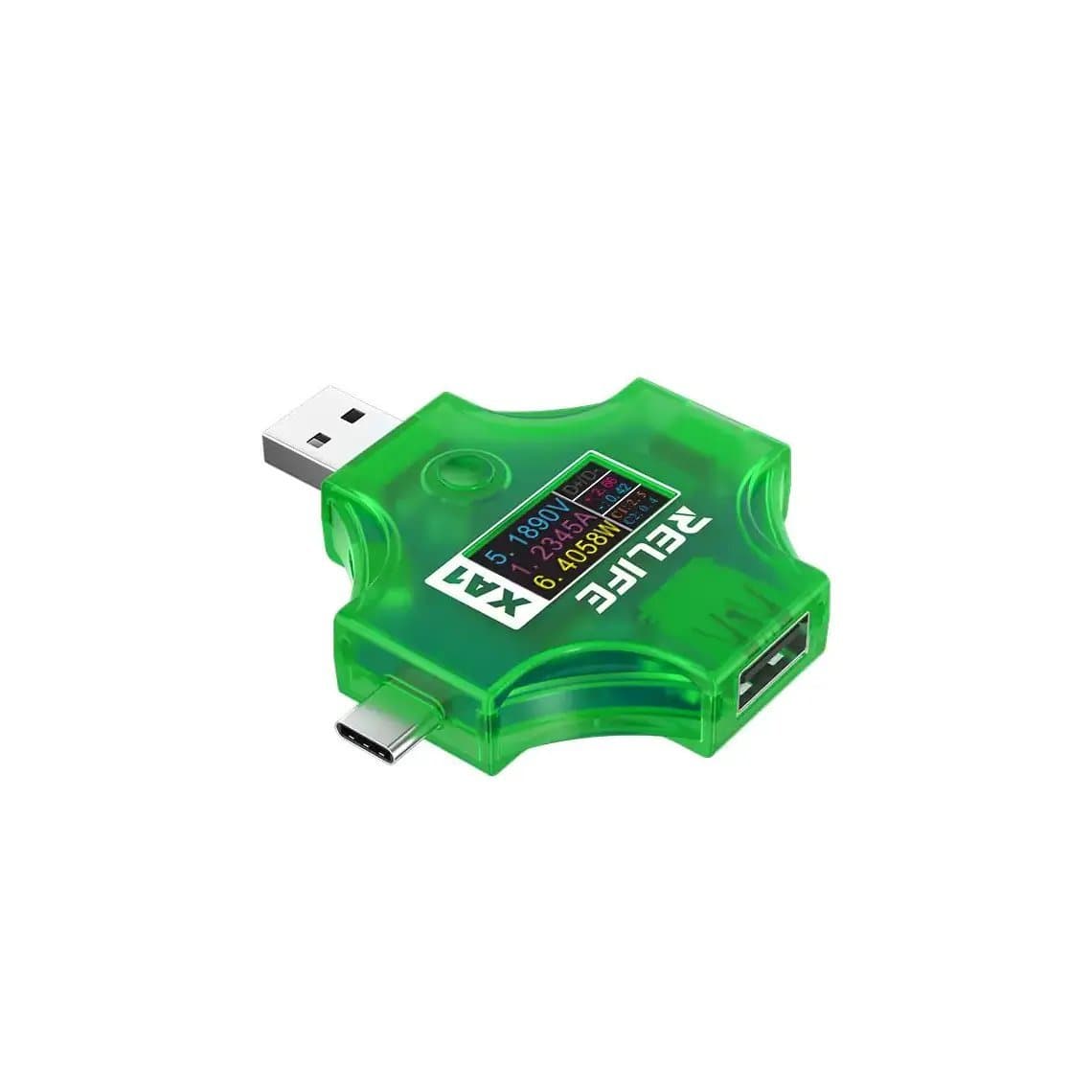
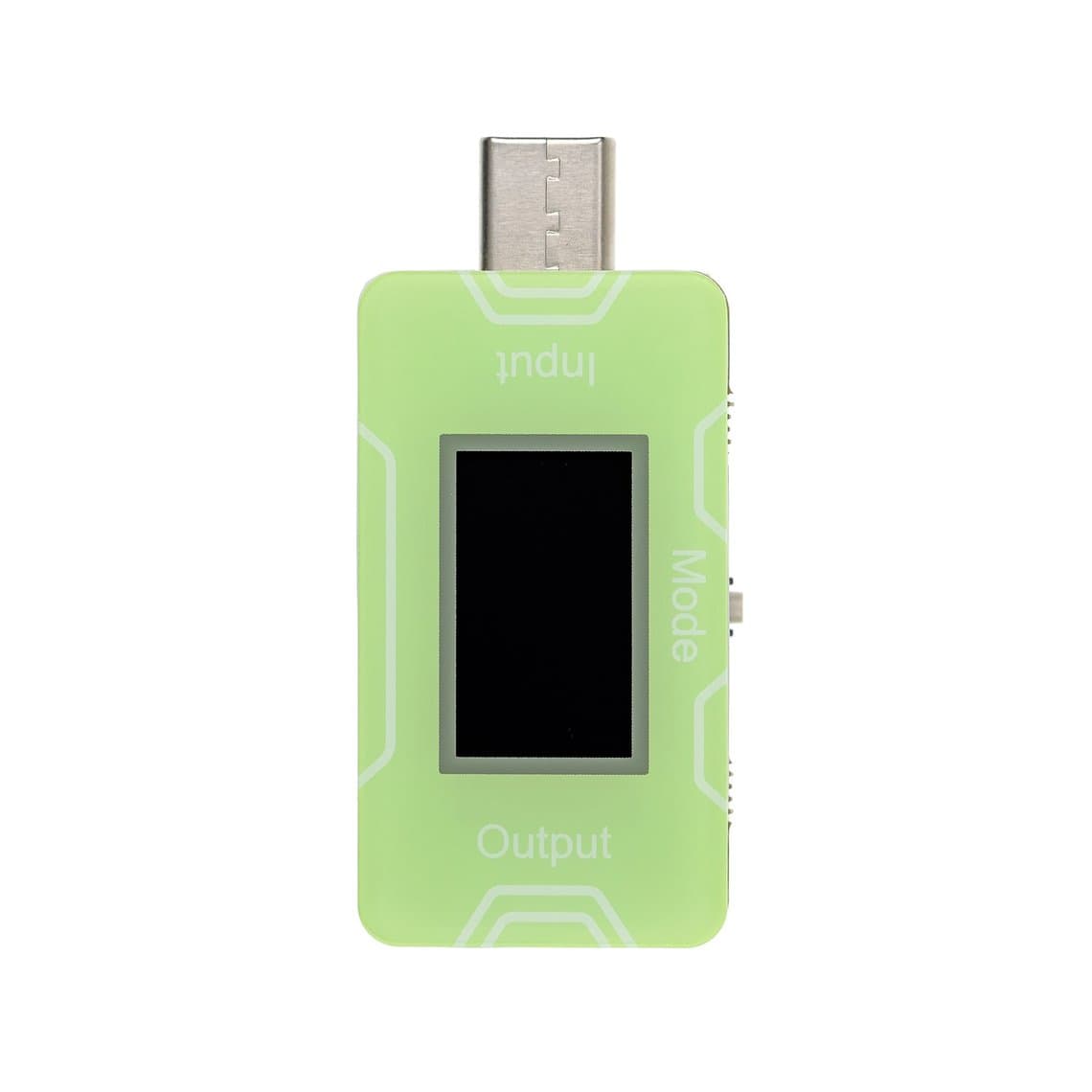
A USB tester inline between charger and phone shows in seconds whether the phone is drawing current and which voltage it negotiated. Our USB testers range includes the Relife XA1 current and voltage USB tester, and the JCID CT02 PD charger and USB-C adapter tester also checks the customer's own adapter.
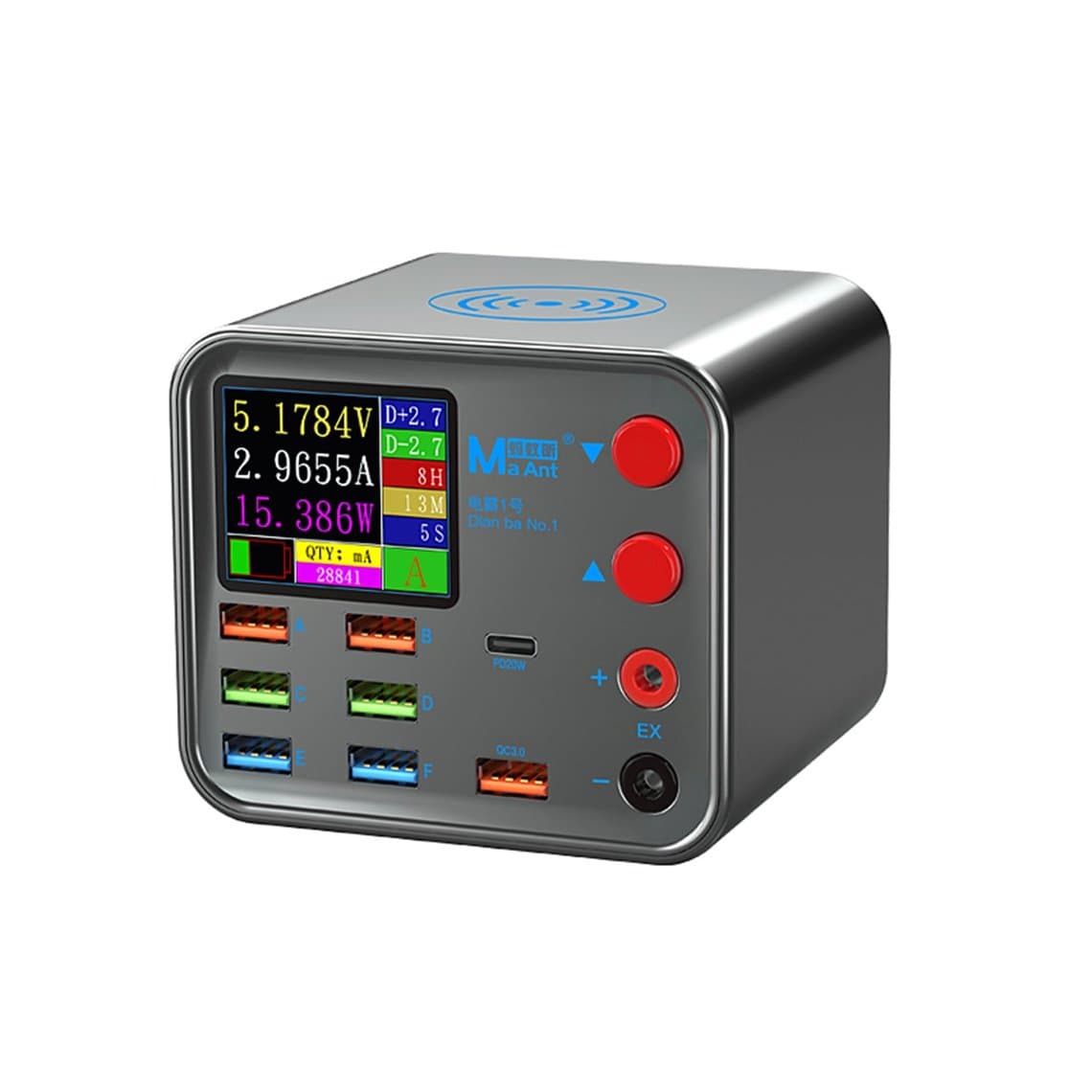
- Rule out accessories. Test the customer's cable on a cable tester such as the Maant 8-port cable short-circuit tester, and the adapter on a PD tester.
- Read the current. With a known good charger and cable, plug in through the tester. No current at all points to the port, flex or a missing connection. A small current that never rises often points to the battery, a protection mode or the charging path.
- Check negotiation. If the phone stays at the base 5 V when it should ask for a higher fast charge voltage, check the cable, then the port data lines and the charging IC.
- Watch for a short. High current with the phone off and a hot spot on the board means a short; stop and diagnose before it damages more parts.
- Isolate the battery. Power the board from a DC power supply with a boot cable to see whether the board itself draws normal current without the battery.
- Swap the cheap part first. Fit a known good port flex or sub-board temporarily before going to board work.
Our guide to USB tester readings covers what typical numbers mean. Always use an ESD mat, disconnect the battery before unplugging any flex, and never pry against a lithium cell.
Questions
Why does my phone say connected but not charging?
The most common reasons are optimized charging holding the level, a temperature pause, a bad cable or adapter, or lint in the port. Work through those free checks first. If none help, the battery, port or charging circuit may be faulty.
How do I clean my charging port safely?
Power off the phone, use a light to look inside, and gently lift lint out with a wooden toothpick or plastic pick. Avoid metal, liquids and blowing into the port. If the contacts look green or black, the port is corroded and needs a technician.
Can a dead battery stop a phone from charging?
Yes. A deeply discharged battery may take several minutes to show any sign of charging, and a failed battery may never accept charge. Leave it on a known good wall charger for at least 30 minutes, then have the battery tested.
Is it the charging port or the battery?
Try wireless charging if the phone supports it. If wireless works but the cable does not, the port or flex is the likely fault. A USB tester also helps: no current at all usually points to the port, while a small current that never rises points more to the battery or charging path.
Browse charging flexes and batteries on our iPhone parts and Samsung parts pages. Repair shops can unlock trade pricing through wholesale and reorder by SKU or CSV with Quick Order.