iPhone Microphone Not Working: Which Mic Is Faulty?
17 November 2026 · LightspeedTools team
Short answer: An iPhone has several microphones, usually at the bottom, at the top front near the earpiece and on the back near the camera, so "microphone not working" means finding which one has failed. Record a Voice Memo, a front-camera video and a rear-camera video, then compare them: the recording that is silent or muffled tells you which mic, and which flex, to look at.
How many microphones does an iPhone have?
Recent iPhones carry three or four microphones, and the exact count and placement vary by model. The common layout is:
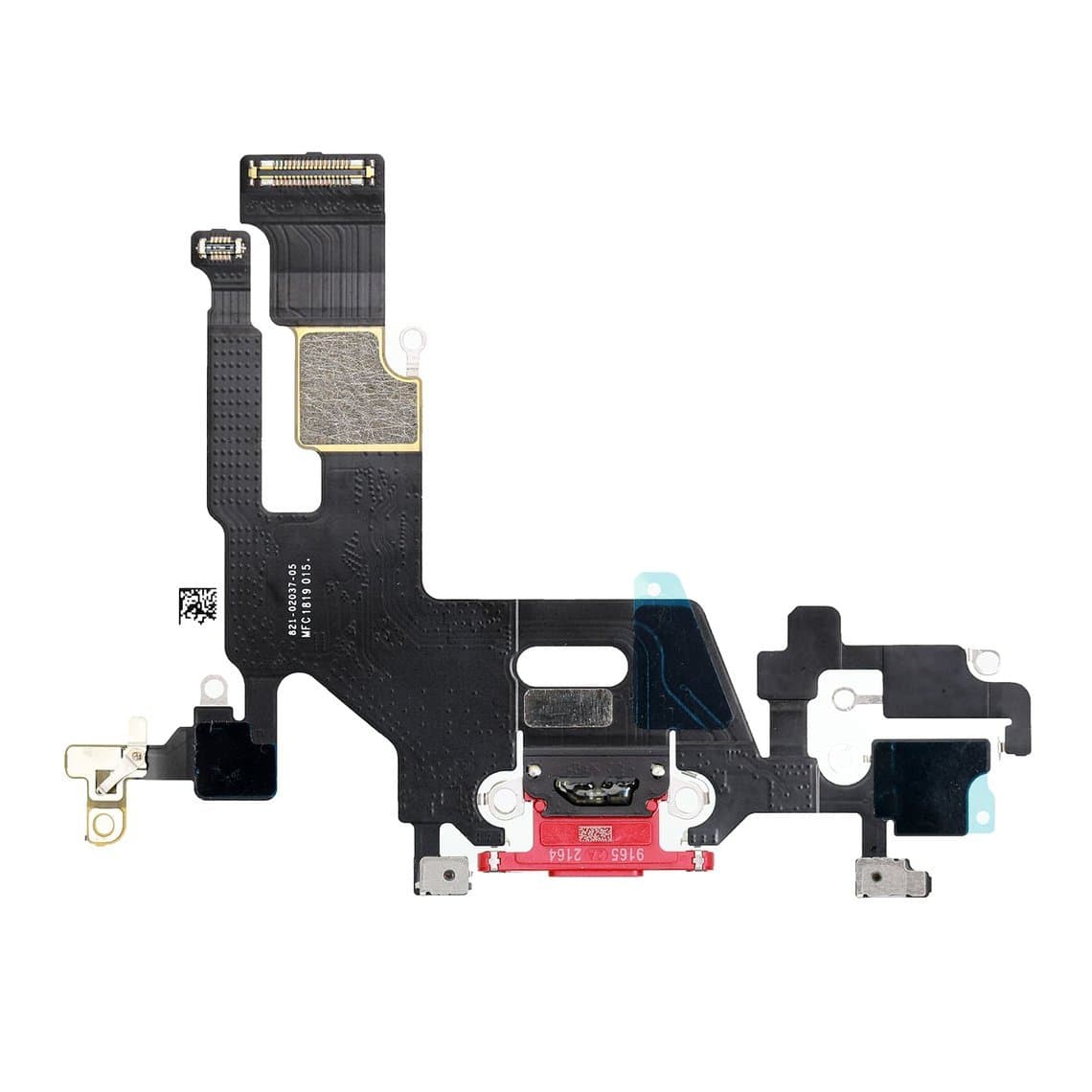
- Bottom microphone(s): In the grille holes at the bottom edge beside the charging port. This is the main mic for normal calls and Voice Memos. On many models it sits on the charging port flex.
- Front / top microphone: Near the earpiece at the top of the screen. It is used for front-camera video, speakerphone and noise cancellation. On many models it is on the earpiece or sensor flex.
- Rear microphone: A small hole near the rear camera and flash. It records audio for rear-camera video and helps with noise reduction. Which flex it is on depends on the model.
Because the phone mixes these mics together for noise cancellation, a single failed mic can show up in odd ways: the caller hears you fine on a normal call but not on speakerphone, or videos have sound on one camera only. That is useful, because each symptom points to a specific part.
Test each microphone in five minutes
Do these tests in a quiet room, speak at the same distance each time and play every recording back through headphones or the loudspeaker.
- Voice Memos: Record a few seconds of speech with the phone flat on the bench, bottom edge toward you. This mainly tests the bottom microphone.
- Front-camera video: Record a short selfie video while talking. This mainly uses the front / top microphone.
- Rear-camera video: Record a short video with the rear camera while talking behind the phone. This mainly uses the rear microphone.
- Normal call: Call a known line and ask whether you are clear, quiet or crackly.
- Speakerphone call: Switch to speaker on the same call and ask again. Speakerphone leans on different mics from a handset call on many models.
- Tap test: While recording, lightly tap or rub near each mic hole in turn with a fingertip. The mic that does not pick up the rubbing clearly is the suspect.
| Test result | Likely faulty mic | Usual location of the part |
|---|---|---|
| Voice Memos silent or muffled, normal calls bad | Bottom microphone | Charging port flex on many models |
| Front-camera video silent, speakerphone poor | Front / top microphone | Earpiece or sensor flex on many models |
| Rear-camera video silent, other tests fine | Rear microphone | A flex near the rear camera; varies by model |
| Every recording silent, every app affected | Software, permissions or board | Check settings, then board-level audio |
| Only one app cannot hear you | App permission or app setting | Settings, not hardware |
Software and permission checks first
Rule these out before opening the phone. They take minutes and catch a fair share of complaints.
- Microphone permission: In Settings, under Privacy and Security, Microphone, make sure the affected app is allowed. A calling app without mic access looks like a hardware fault to the customer.
- Bluetooth: Turn Bluetooth off. A connected headset, car kit or earbuds can take over the microphone.
- Mic Mode: During a call, the Control Center mic mode (Standard, Voice Isolation, Wide Spectrum) on supported models changes how the phone sounds. Set it to Standard while testing.
- Restart and update: Force restart the phone and install any pending iOS update.
- Case and protector: Remove the case. A poorly cut case can block the bottom or rear mic hole completely.
If one app fails and the built-in apps work, it is not the microphone. If Voice Memos, camera video and calls all fail in the same way, move on to hardware.
Common causes of a faulty iPhone microphone
Blocked mesh and grille holes
The bottom grille fills with pocket lint, dust and debris, and the tiny rear mic hole can be closed off by a single speck. A blocked bottom mic gives quiet, distant calls rather than total silence. Inspect the holes under a microscope; a stereo microscope from our microscopes range shows debris that the naked eye misses.
Clean with a soft, dry brush, working across the holes rather than into them. A brush lightly wetted with isopropyl alcohol helps with oily grime; let it dry before testing. Never push a needle, pin or SIM tool into a mic hole. Behind it sits a small membrane and a MEMS microphone that is easily destroyed. Do not fire compressed air into the hole at close range either.
Liquid damage
Microphones sit behind open holes, so liquid reaches them quickly. A wet mic often sounds muffled or crackly and may recover after drying; a corroded one does not. Open the phone, disconnect the battery and inspect the mic, its flex and its connector for corrosion. Our water damage bench process covers the cleaning and drying routine.
Bottom mic on the charging port flex
On many iPhone models the bottom microphone is built into the charging port flex, so a mic fault and a charging fault can share one part. A phone that charges intermittently and also sounds quiet on calls is a strong hint. The fix is usually to replace the whole flex, for example an iPhone 11 USB charging flex cable, an iPhone 12/12 Pro USB charging flex cable, an iPhone SE 2nd USB charging flex cable or, on newer phones, an iPhone 15 charging port flex cable, iPhone 16 charging port flex cable or iPhone 17 charging port flex cable. Check a teardown for your exact model to confirm the mic is on that flex before ordering. For the full replacement procedure, see our iPhone charging port repair guide.
Front and rear mics on other flexes
The front mic often shares a flex with the earpiece, proximity and ambient light sensors, and the rear mic often shares a flex with the flash or other top-of-phone parts. Exact placement varies by model. Replacing one of these flexes may affect the other parts on it, so test auto-brightness, proximity and, on Face ID models, Face ID after the job.
Broken flex after a screen or back repair
A mic that failed straight after another repair is usually damage, not coincidence. On older models where the earpiece and sensor flex transfer to a new display, the front mic can be torn or left unseated. On back-glass and housing jobs, the rear mic and its foam seal are easy to disturb. Check the connector is fully seated, look for creases or tears in the flex, and confirm the small foam gaskets and retaining brackets went back in. On models such as the iPhone X, missing pieces like the iPhone X microphone flex foam or the iPhone X charging port microphone retaining plastic can leave the mic poorly sealed against its hole, which makes it sound hollow or quiet. Our screen replacement guide covers safe flex transfer, and the iPhone screens range lists which displays need the sensor flex moved across.
Board-level audio faults on some older models
If known-good flexes do not fix the problem and every mic is silent, the fault may be on the board. Some iPhone 7 and 7 Plus units are known for an audio IC fault where Voice Memos fail, the caller cannot hear the user and the speaker button greys out during calls. Similar faults can follow drops or liquid damage on other older models. This is microsoldering work that needs a microscope, schematics and experience; refer it on if your shop does not do board repair.
How to repair: step by step
- Confirm the faulty mic with the tests above and note which flex carries it on that model.
- Back up the phone if possible and record the customer's symptom and test results.
- Power off, open the phone with moderate heat, and disconnect the battery before touching any flex.
- Inspect the mic, flex and connector under magnification for damage, corrosion or a lifted connector.
- Test with a known-good flex connected loosely before final fitting. If the new part fixes it, install it properly.
- Refit every gasket, foam piece, bracket and screw in its original place.
- Clean the external grille gently while the phone is open, working from outside.
- Retest Voice Memos, both camera videos, a normal call and a speakerphone call, plus charging if you changed the port flex.
Safety and good practice
- Work on an ESD mat with a grounded strap. MEMS microphones and sensor flexes are static-sensitive.
- Disconnect the battery first. Do not bend, puncture or heat a lithium battery, and stop work on a swollen one.
- Keep heat moderate around the camera and display. Too much heat damages adhesives, cameras and screens.
- On recent iPhones, a non-Apple flex may trigger an "Unknown part" notice in Settings. The part still works; tell the customer in advance.
Common mistakes
- Replacing the charging port flex when the faulty mic is actually the front or rear one.
- Confusing a microphone fault ("they can't hear me") with an earpiece fault ("I can't hear them").
- Poking a pin into a mic hole and destroying the microphone.
- Skipping the app permission and Bluetooth checks.
- Forgetting mic foam or brackets on reassembly, leaving a muffled mic.
Questions
Why can people not hear me on calls but my videos have sound?
Normal calls lean mainly on the bottom microphone, while videos often use the front or rear mic. If videos record fine but callers cannot hear you, the bottom mic or the charging port flex it sits on is the most likely fault. Check for a blocked grille and test Voice Memos to confirm.
How do I test which iPhone microphone is not working?
Record a Voice Memo (bottom mic), a front-camera video (front mic) and a rear-camera video (rear mic), then play each back. The silent or muffled recording points to the faulty mic. A speakerphone call and a tap test near each hole help confirm it.
Is the iPhone microphone part of the charging port?
On many models, yes: the bottom microphone is built into the charging port flex, so replacing the flex replaces the mic. Placement varies by model, so check a teardown before ordering. The front and rear mics are on other flexes.
Can I clean an iPhone microphone myself?
You can gently brush the outside grille with a soft, dry brush and remove the case. Do not push pins into the holes or blow strong compressed air into them, because the microphone sits right behind the opening. If cleaning does not help, the mic or its flex needs testing and replacement.
Charging port flexes, microphone foams and other small parts are in our iPhone parts range, tested before shipping from Shenzhen. Shops buying regularly can apply for a wholesale account, or reorder by SKU or CSV through Quick Order.