iPhone Screen Not Working After Replacement: Troubleshooting Checklist
17 November 2026 · LightspeedTools team
Short answer: When an iPhone screen does not work after replacement, the cause is usually at the connector: a display or touch flex not fully seated, a bent pin, debris, or a flex that was creased during fitting. Disconnect the battery, reseat and inspect every connector, then test the new screen on a screen tester or try the original screen to find out whether the fault is the part or the phone.
Most "dead" new screens are not dead, and nearly every cause can be found before the screen is glued down. This checklist covers LCD iPhones (such as the 8 series, XR and 11) and OLED iPhones, starting with the symptom and then giving the checks in the order that finds the fault fastest.
Before you start: safety and a clean setup
- Disconnect the battery first, every time. Plugging in a display with the battery connected can damage the screen or the board.
- Use ESD protection: a grounded mat and wrist strap.
- Do not lean on the battery with metal tools. A punctured or bent lithium battery can vent or catch fire. Use plastic tools near it.
- Do not seal the phone until it works. Reopening a sealed phone risks the new panel.
Match the symptom to the likely cause
| Symptom | Most likely causes | Check first |
|---|---|---|
| No image at all (phone vibrates, rings or connects to a computer) | Display connector not seated, bent pin, faulty part, damaged display flex | Reseat display connector; test the part on a tester |
| Image but no touch | Touch connector loose (models with a separate touch flex), damaged touch flex, incompatible part | Reseat the touch connector; check for a cut or creased flex |
| Touch works but no image | Display connector half-seated, display flex damage, faulty panel | Reseat; inspect the flex near the bend |
| Lines, bands or part of the screen missing | Bent pin, debris, cracked panel, pressure on the flex | Inspect pins under magnification |
| Image very dim or only visible under a torch (LCD models) | Backlight not working: loose connector, faulty LCD, or board-side backlight circuit | Try a known-good screen |
| Flicker | Loose or dirty connector, damaged flex, some aftermarket panels | Reseat and clean; compare with another screen |
| Ghost touch or random taps | Pressure on the panel, poor-quality touch layer, debris, flex trapped under a bracket | Test with the screen loose and flat |
| Face ID, proximity, True Tone or auto-brightness missing | Earpiece/sensor flex not transferred or damaged, display data not copied, part pairing | Check the sensor flex; use a programmer where supported |
The checklist, in order
Each step is quicker than the next and rules out a group of causes.
1. Is the connector fully seated and clean?
Disconnect the battery. Unplug the display connector (and the touch connector on models that have one), look at both sides, and press it back on squarely until you feel a firm click across the full width. A connector seated on one end only is the most common reason for a black screen, missing touch or lines. Refit the bracket, which keeps the connector fully home on many models.
Clean any adhesive, dust or flux off the connector with isopropyl alcohol and let it dry before reconnecting.
2. Are any pins bent, missing or bridged?
Look at the board-side connector under magnification. A stereo microscope makes this a ten-second job. You are looking for a pin that is bent over, flattened, missing, or touching the pin next to it, and for a tiny piece of debris sitting between pins. A bent pin can cause lines, a missing colour, no image or a short. Bent pins can sometimes be straightened under the microscope; a missing or burnt pin means replacing the connector, which is board-level work.
3. Was the flex damaged during fitting?
Check the full length of the display and touch flex for creases, tears, a lifted shield or a dent where it folds. Flex cables are usually damaged when the screen is opened too far or pinched under a bracket. Damage often shows only when the flex is bent the way it sits in the closed phone, so test with the screen held close to its final position.
Also check that insulation stickers and shields from the old screen were moved across. Some models have insulator stickers on the back of the display or around the flex, such as the XS Max display flex insulator sticker or the iPhone X display insulation sticker. If one is missing, metal parts can touch, which may cause ghost touch, flicker or no image. Replace a torn one rather than leaving it off.
4. Was the battery connected while you plugged in the screen?
If yes, keep it in mind for every step below. A live connection can damage the new screen, board-side filters on the display lines or, on LCD models, the backlight circuit.
5. Is it the right part and revision for this model?
Many iPhone screens look alike but are not interchangeable; connectors, flex length and driver chips differ. Check the part against the phone's model number, not only its name. With aftermarket screens, some panels may be less tolerant of certain iOS versions or board revisions; if a screen is correct for the model but still behaves oddly, try another screen of the same type from a different batch before blaming the phone. When in doubt, use our iPhone screens category, where parts are listed by exact model.
6. Is the new screen faulty? Test before you seal
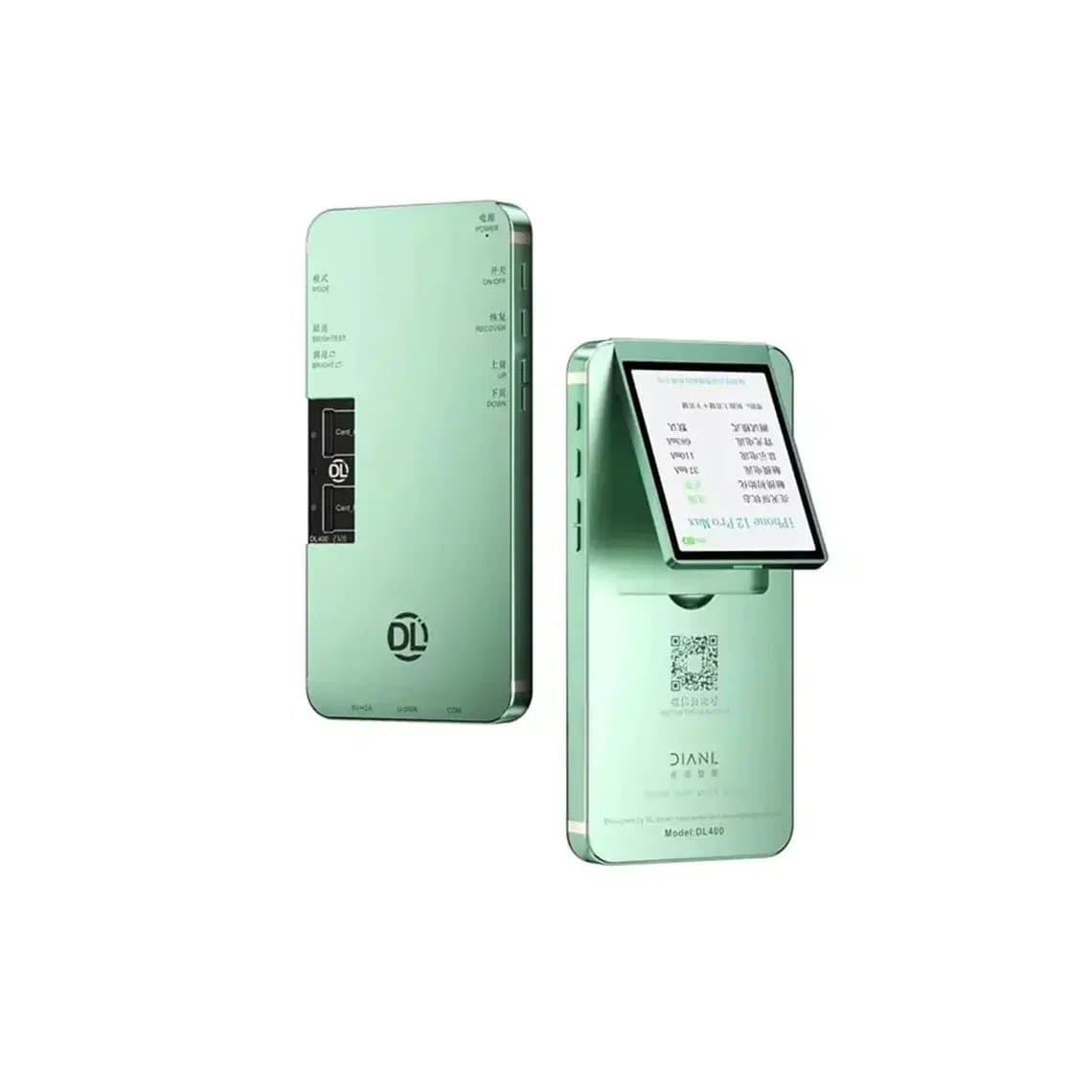
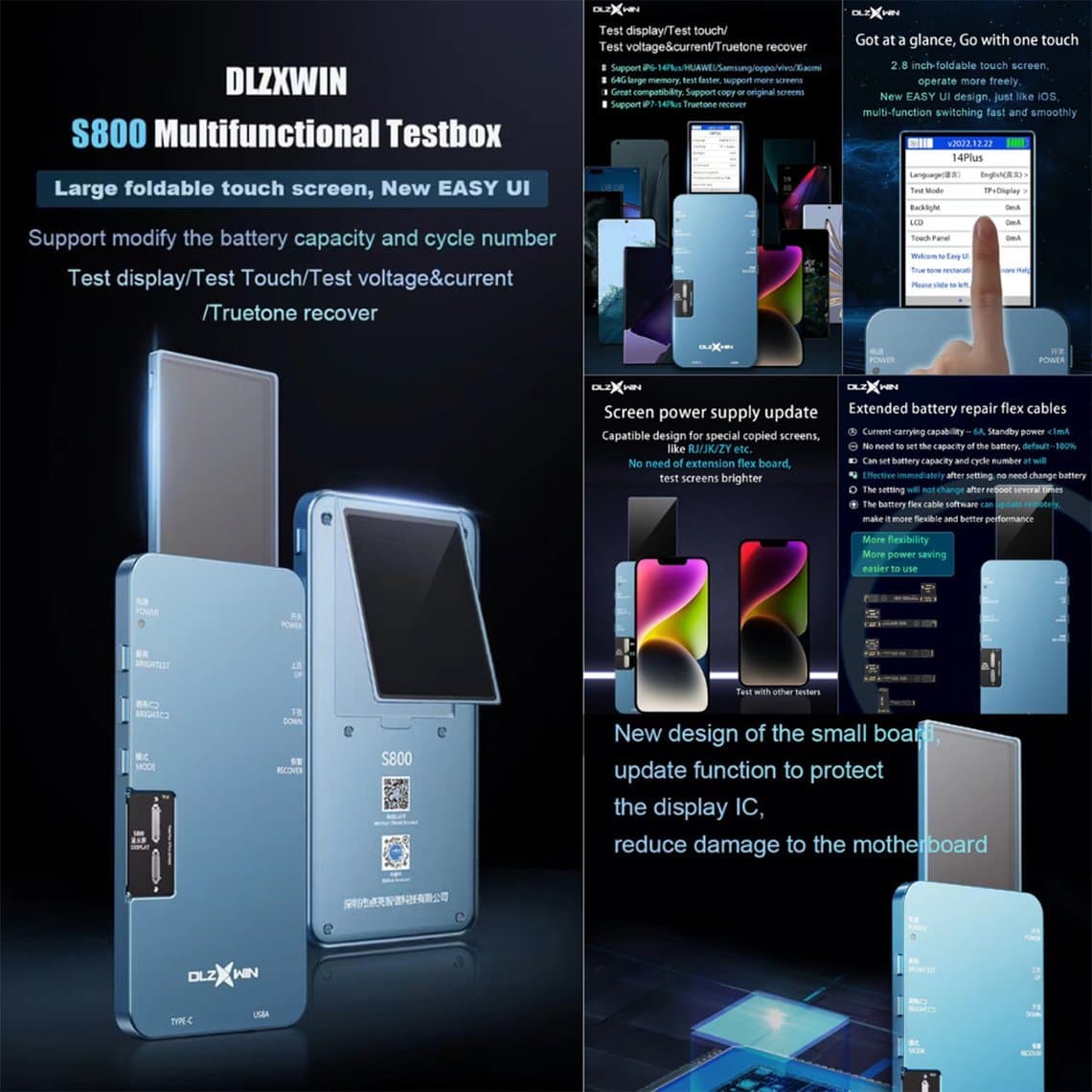
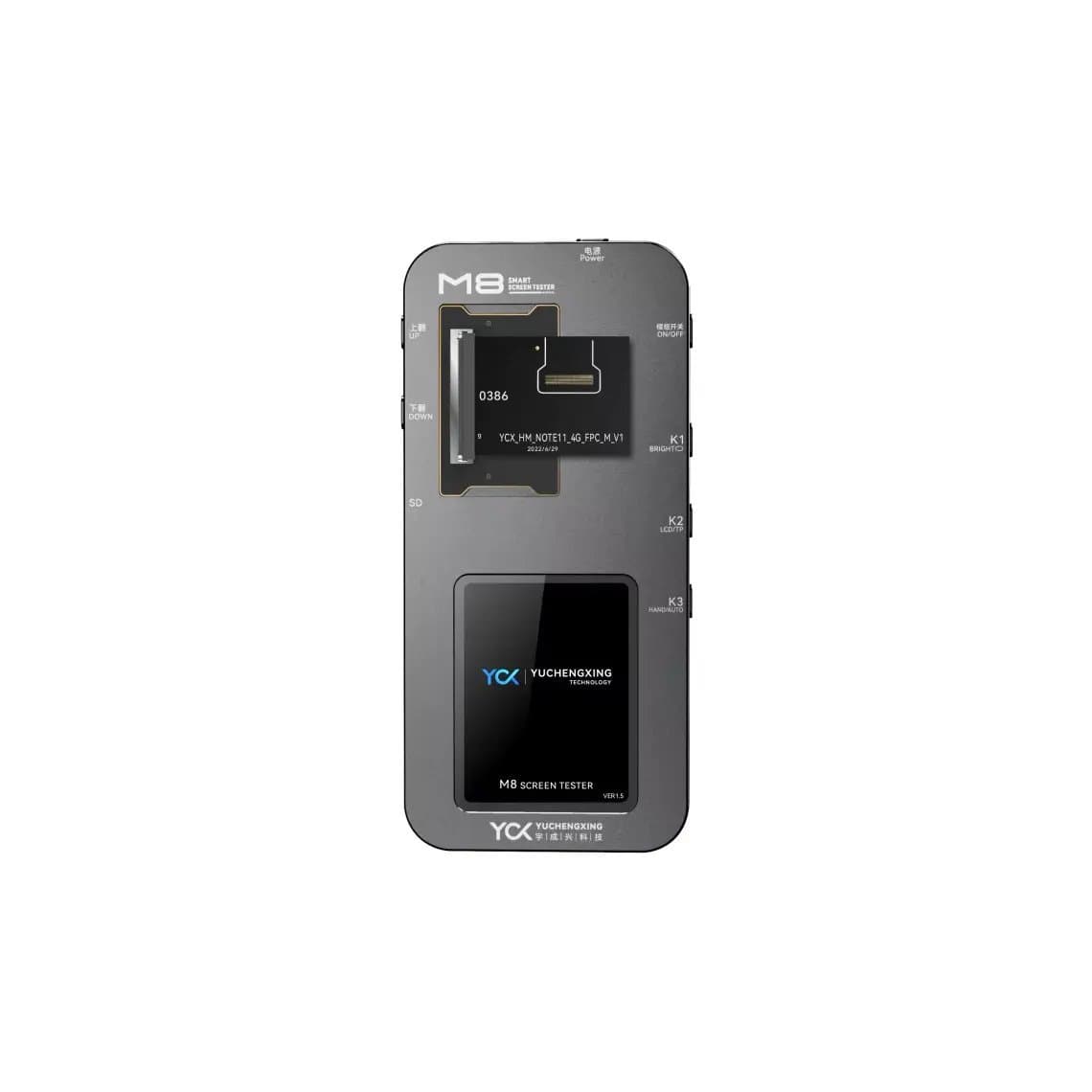
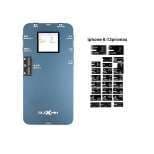
New parts do fail, usually from shipping damage or a weak panel. A screen tester takes the phone out of the equation: if image and touch are good on the tester, the problem is in the phone or the fitting. Testers such as the DL400 Pro screen tester for iPhone, the DL S300 LCD screen tester and the YCX M830 cover iPhone and many Android screens; supported models vary by tester and test board, so check the listing. Shops that handle many screens often prefer a multi-function unit like the DL S800 or the YCX M8. See all options in screen testers.
Testing every screen on arrival, and again before fitting, saves the most time, and a screen that fails can be returned under warranty without ever having been glued.
7. Does the original screen work? Rule out the board
If the original screen still shows an image (even cracked), connect it. If the original works and the new one does not, and the new one tested fine on a tester, look again at connector seating, flex damage and part compatibility. If the original screen now also fails, the phone has a fault: either it was already there, or it happened during the repair.
Ask whether the phone had liquid exposure or a hard impact; such damage often shows up only after a screen swap.
8. Board-level faults
If two known-good screens fail on the same phone, the fault is on the board. Common areas are the display connector itself, small filters and protection parts on the display lines, and the power lines that feed the panel. On LCD models, the backlight circuit (which drives the light behind the LCD) can fail, especially after a screen was connected with the battery live; the symptom is an image you can only just see with a torch. Exact components vary by model, so measure against a schematic before replacing anything. This is micro-soldering work.
Face ID, proximity, True Tone and auto-brightness missing
These features depend on parts and data that stay with the phone, not on the display itself:
- Face ID and proximity: on iPhone X and later, the earpiece/front sensor flex from the old screen has to be moved to the new one with care. If that flex is torn, Face ID or the proximity sensor may stop working, and on several models it cannot simply be replaced with a generic part. If the phone shows a "Face ID is not available" message, check this flex first, and keep it away from heat and sharp tools during the transfer.
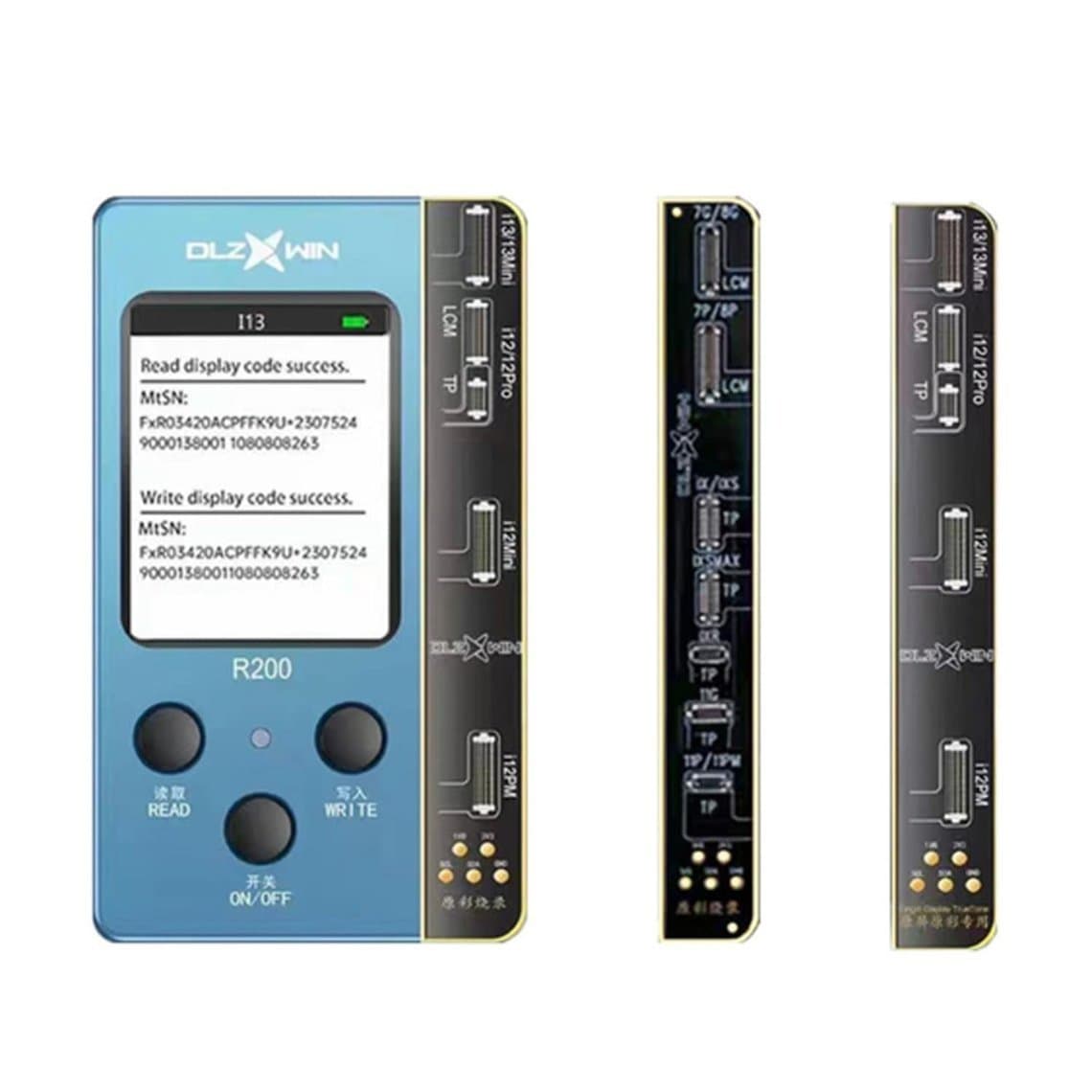
- True Tone: this setting needs display data that matches the phone. After a screen swap it often disappears from settings. On supported models it can be restored by reading the data from the original screen and writing it to the new one with a programmer such as the DL R200 True Tone recovery device. See True Tone screen programmers; support varies by model and iOS version.
- Auto-brightness: depends on the ambient light sensor, which on many models sits on the earpiece/sensor flex; check that flex first.
On recent iPhones, a non-Apple or moved screen will also show an "Unknown part" notice in settings. That is expected; the screen still works.
Image but no touch, or ghost touch
On models with a separate touch connector, that connector is the first suspect. Ghost touch after a repair often comes from pressure: a long screw, a twisted frame, a trapped flex or too much adhesive. If it only happens when the screen is pressed into the frame, the problem is fitting, not the part. See our iPhone ghost touch fix guide.
For lines and black screens in more depth, see green line on iPhone screen and iPhone black screen but phone is on.
Common mistakes that cause a "dead" new screen
- Leaving the battery connected while plugging in the display.
- Pressing a connector on at one end only.
- Forgetting to transfer the earpiece/sensor flex, insulation stickers or shields.
- Using a longer screw in the wrong hole, which can damage the board under it.
- Gluing the screen down before testing.
For the full procedure, see our iPhone screen replacement step by step guide.
Questions
Why is my iPhone screen black after replacement but the phone is on?
The most common reason is a display connector that is not fully seated, followed by a bent pin or a damaged flex. Disconnect the battery, reseat the connector with the bracket fitted, and inspect the pins. If it is still black, test the new screen on a screen tester and try the original screen to see whether the part or the phone is at fault.
Why does the new screen show an image but touch does not work?
On models with a separate touch connector, it is usually not plugged in or not fully seated. On newer models it can be a damaged display flex or an incompatible part. Reseat everything, check the flex for creases, and test the screen on a tester to confirm touch works there.
Can connecting a screen with the battery in damage the phone?
Yes, it can. It may damage the new screen, protection parts on the display lines, or the backlight circuit on LCD models. Always disconnect the battery before plugging or unplugging any connector.
Why did True Tone disappear after I replaced the screen?
True Tone relies on display data that matches the phone, and a new screen does not carry the original data. On supported models you can copy the data from the old screen to the new one with a True Tone programmer. Support varies by model and iOS version.
Find model-specific replacements in our iPhone screens range, each tested before shipping, and compare grades and warranties on quality grades. Shops buying in volume can apply for wholesale pricing or reorder by SKU through Quick Order.